POS software by type of shop, set up for the way you sell
Choose the kind of shop you run during setup. SellyPOS starts with the fields and settings that suit it, and you can change them later.
A grocery store, a pharmacy and a clothing shop sell different things, and each needs a few settings of its own. POS software by type of shop means SellyPOS starts with what suits your kind of shop, so you do not have to build all of it by hand.
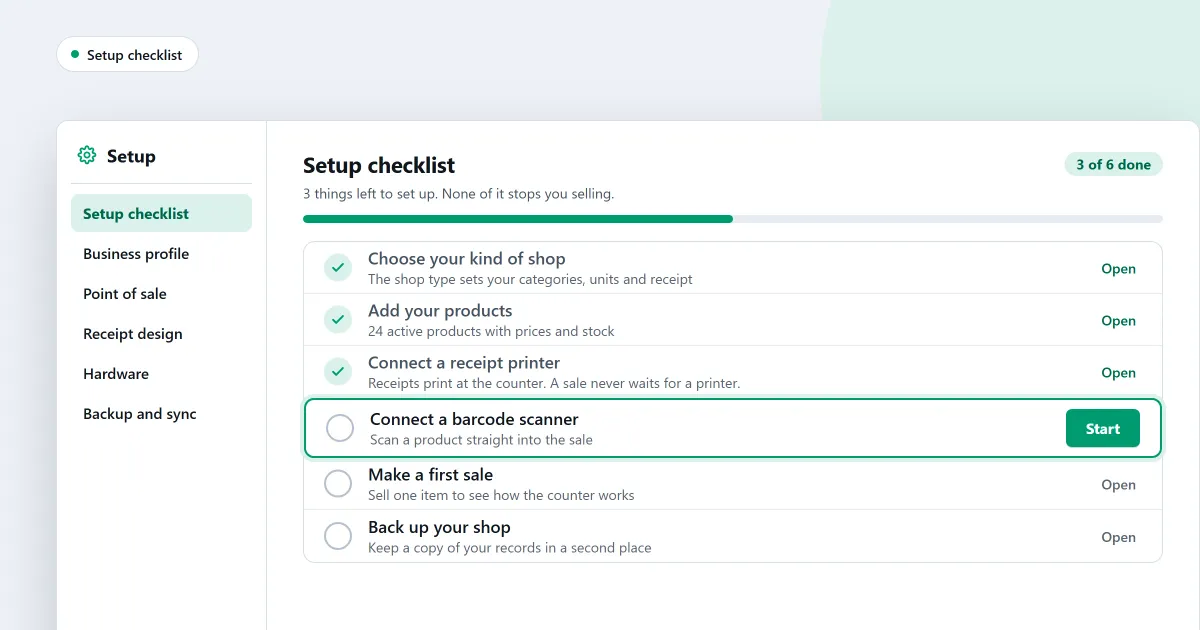
Choose your kind of shop at setup
During setup, the wizard asks what kind of shop this is and shows a tile for each type. Choose the tile that fits. Choosing one sets sensible defaults for the shop. If you choose Skip for now, the settings stay as they are.
The type decides which fields a new product shows, and what defaults it starts with. You can change it afterwards.
For example, a new owner opens SellyPOS for the first time and sees the tiles. They pick the one that matches their shop, and each new product shows the fields for that kind of goods.
For a step-by-step guide to the first set-up, read how to set up a POS system for a small shop.
Garment and shoe shops start with product options
Choose Garments, Shoes or Supermarket as the business type, and the product options are created for you. Garments starts with eight options holding 103 values in all. Shoes starts with four options holding 80 values. Supermarket starts with 16 options holding 170 values. You can also correct the type later in Setup, and the options are created then. Product options belong to products with variants, so this part applies where your shop uses variants.
For example, a garment shop owner chooses Garments at setup. The options are already in place when the first product is added. More on sizes and colours is on its own page.
Pharmacy: medicine details and a drug licence
A pharmacy can record each medicine’s generic name, strength, dosage form and storage conditions. These are asked for but never required, so a product saves without them.
A pharmacy or supermarket records its drug licence number, the pharmacist’s name and the pharmacist’s registration number on Setup > Business profile. These print under the shop’s details on every receipt style and on an A4 invoice, when the receipt design switch is on.
No price can go above a product’s MRP. A typed price above it is refused, and no setting or approval allows it.
For example, the pharmacy owner adds a new medicine. Its generic name and strength are filled in, and the product saves even though the dosage form is left blank.
Grocery and food: expiry dates for each product
Expiry tracking is set product by product. Food, cosmetics and other goods can carry expiry dates, not only medicines. When goods are received, the expiry date is entered once for each line received.
Stock with a date is sold earliest-expiring first, and an expired product is blocked. A product marked as loose, and sold in a unit that allows decimals, asks how much is being sold. The line is priced for the answer.
Phone and electronics shops: one code for each device
A product tracked by serial number carries a device type, such as phone, laptop or appliance. The device type decides which codes each unit asks for. A phone asks for a serial number or an IMEI, and at least one is needed.
Scan a device’s code in the main entry box, and that device is added to the cart at its own price. There is no product search. A product can also carry one or more warranty covers, each with its own length, starting from the sale or from a date.
For example, a shopkeeper scans the IMEI of a phone. It goes into the cart at its own price, with no search first. See the mobile shop page for how a phone is tracked.
Electronics and appliances, one unit at a time
A laptop is recorded by its serial number, and a router by its MAC address. A code belongs to one device only. Scanning a device’s code adds that unit to the cart at its own price. Device tracking is in Professional only.
Cosmetics and beauty products
Cosmetics can carry expiry dates, as food and other goods can. Each category sets whether its products track expiry, and a new product takes that default. Expiry is in Basic and Professional, not in Lite.
Next
- Set up the shop’s profile and documents
- Set up your products and catalogue
- See the pharmacy software page or the clothing shop page
- Shop management software for a small shop
- Check which edition has what you need
Ready to start? Download SellyPOS or compare the editions and prices.
Questions people ask
How do I set SellyPOS up for my kind of shop?
At setup, choose your kind of shop from the tiles. The choice sets sensible defaults for the shop and decides which fields a new product shows. Choose your country from a list you can type to filter, and the currency, formats and time zone are filled in for you. You can change the business type later in Settings. To confirm, you type the word CHANGE, and the screen names what the new type changed. Settings you changed yourself are left alone. See POS software for your kind of shop.