Why your browser warns about the SellyPOS download
Why Edge or Chrome warns about the SellyPOS installer, what the warning does and does not mean, and how to keep the file safely.
Your browser may stop you when you download SellyPOS and say the file may be dangerous, or that it is not commonly downloaded. That is worrying, and it is reasonable to stop and ask. This page shows you what you will see and how to carry on.
What you may see
The wording can change between browsers and versions, so look for the idea. The browser says the file is not commonly downloaded, or may be dangerous.
In Microsoft Edge
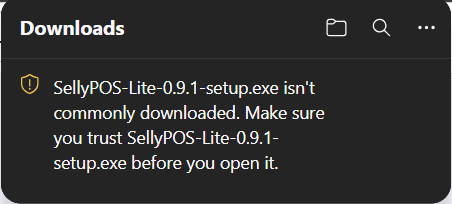
Edge shows the warning in its Downloads panel once the download finishes. A shield icon appears, and the panel says the file “isn’t commonly downloaded” and asks you to make sure you trust it before you open it.
In Google Chrome
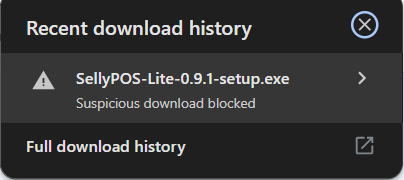
Chrome’s download panel shows the file with a warning triangle and the words Suspicious download blocked. Chrome’s words are stronger than Edge’s, but it is the same kind of check.
What the warning means (and does not mean)
Edge and Chrome both check a downloaded program’s reputation. Edge uses Microsoft Defender SmartScreen. Chrome uses its own safety check. Both look at how many people have downloaded the file so far. A new program has had few or no downloads, so the check has little to go on. Microsoft’s systems also judge a file by its certificate, and SellyPOS does not have one yet.
The warning is a check based on reputation. It is not a verdict that SellyPOS is harmful.
The publisher shows as Unknown for the same reason. The installer is not signed with a company certificate yet. A certificate is a credential a company buys every year, after a certificate authority has checked who the company is. Selly Systems has not bought one yet. Getting one is on our list, and we will update these pages when it happens.
What we do so you can trust the file
- The installer comes from dl.sellypos.com, a Selly Systems address, over HTTPS, the encrypted connection that also protects sellypos.com.
- Before each release, we send the installers to Microsoft’s malware analysis service, so Microsoft’s security systems can look at them.
- Updates the program installs are checked against a key built into the program. It refuses an update whose signature does not match. Updates are never forced, and the program makes a backup of your shop’s data first.
- We list everything the installer changes on your computer, further down this page.
How to keep the download
In Microsoft Edge
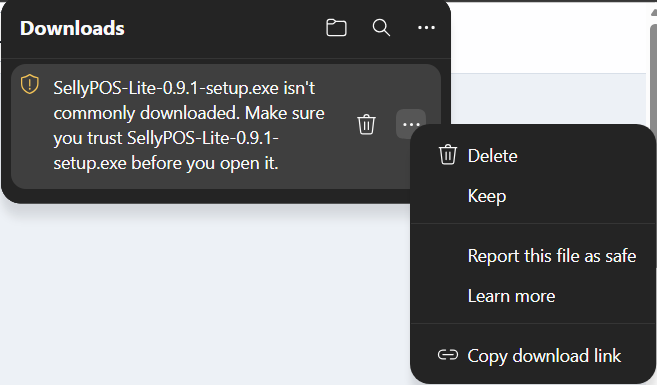
- In the Downloads panel, point at the warning and open the … (three dots) menu beside it. Do not use the bin icon, which deletes the file.
- Choose Keep.
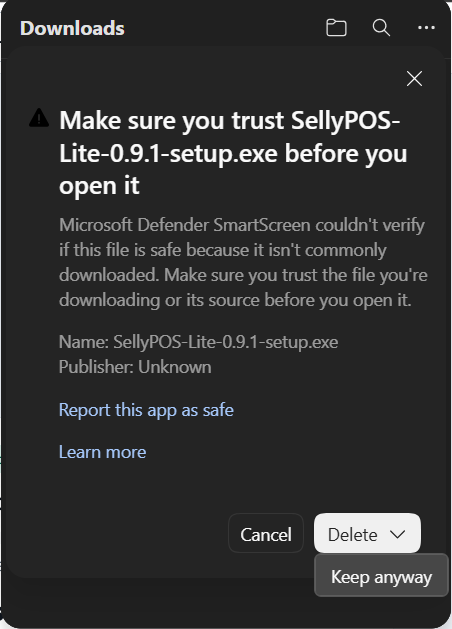
A second panel titled “Make sure you trust” says the publisher is Unknown.
3. Open the small arrow beside Delete, and choose Keep anyway. Do not press Delete itself.
In Google Chrome
- Open Chrome’s download panel and click the row for the SellyPOS file.
- Read the message. It says the file is not commonly downloaded and may be dangerous.
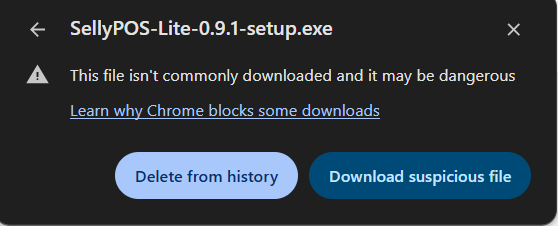
3. Choose Download suspicious file. Do not choose Delete from history, the pale blue button.
If you use another browser, look for a similar warning on the download and choose to keep it.
Check it before you run it
- Make sure the file came from sellypos.com. Its name starts with
SellyPOS-and ends with-setup.exe. - If someone sent you the installer another way, such as by WhatsApp or on a USB stick from a stranger, delete it and download it again from sellypos.com.
- Right-click the downloaded file and choose Scan with Microsoft Defender. The menu item is worded this way on Windows 11.
What the installer changes on your computer
The installer does the following.
- It asks Windows for administrator approval once, and installs SellyPOS in the Program Files folder.
- It may add a Start menu shortcut and a Desktop shortcut. You can untick either one.
- It adds two Windows Firewall rules. They let SellyPOS talk to other SellyPOS computers on the same local network only, on private and domain networks and the local subnet only. They are used when a shop has more than one computer.
- It asks Windows Defender not to scan SellyPOS’s own program folder and its data folder. This is for speed.
- It does not touch other programs.
Uninstalling removes the program. It never deletes your shop’s data.
Your shop’s sales and customer data stay on the shop’s own computer, and SellyPOS works with no internet connection. Signing in with Google registers the shop with Selly Systems.
Next steps
To see what happens when you run the installer, read the publisher warning. If Windows blocks SellyPOS, read Windows blocked SellyPOS: Smart App Control.
Still unsure? Message Selly Systems on WhatsApp and we will help you.
Later updates are offered inside SellyPOS and checked first: see how an update works.
Questions people ask
Why does Windows say "unknown publisher" when I install SellyPOS?
The installer is not yet signed with a code-signing certificate, so Windows SmartScreen cannot name the publisher. If you downloaded it from sellypos.com, choose More info, then Run anyway. Step-by-step help.