Stock you can check at the counter: inventory software for a small shop
A shop that cannot say what is on the shelf guesses. SellyPOS keeps stock for each product, and Lite does it free with a 20-product limit.
A customer asks for a product. You look at the shelf, and it is not there. Or it is there, and your book says it is not. A shop that cannot say what is on the shelf is guessing. Inventory software for a small shop keeps one stock figure for each product, and changes it only for a reason that stays on record.
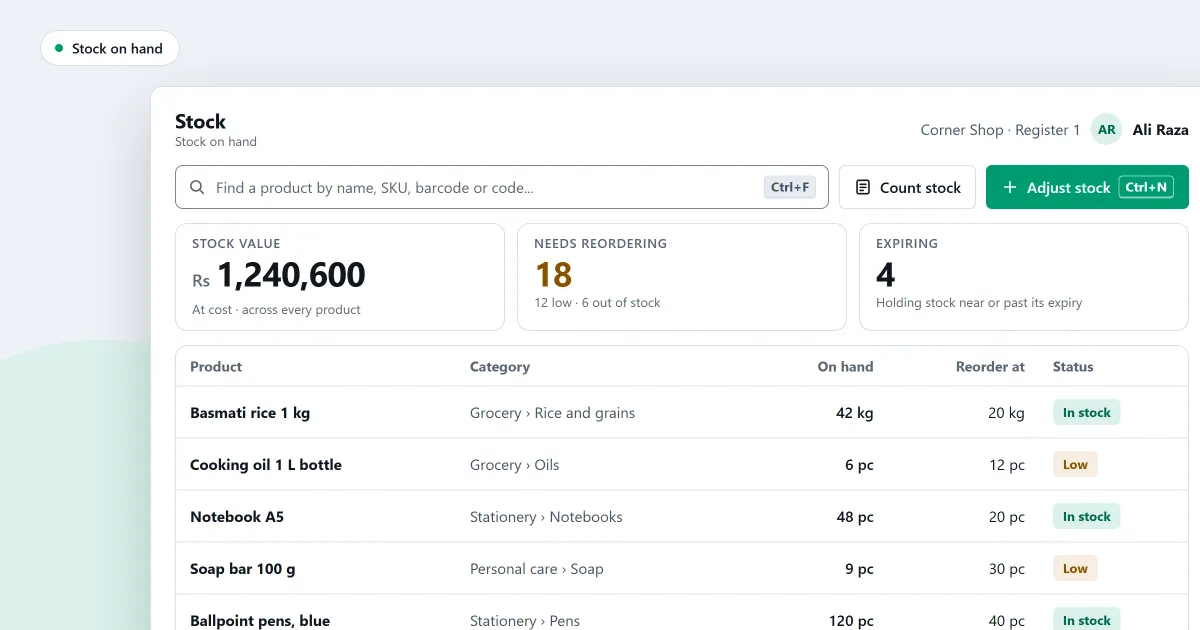
SellyPOS is inventory software for a small shop. Each change to stock is a record, and the figure you see is the sum of those records. The parts below say which edition holds each one.
Stock on hand and adjustments in every edition
The stock list shows every product with its quantity on hand. Sort it by quantity or by value, and open a row to see its movements and the document behind each one. For a product with pack levels, stock is shown as whole cartons, boxes and pieces, with the total in the smallest unit beside it.
When stock goes up or down by hand, you make a stock adjustment. Every adjustment needs a reason, and it is saved as one numbered document with several lines. A mistake is never edited. You void the adjustment with a reason, and SellyPOS records a new document that names the one it reverses.
Stock management software free download for PC
SellyPOS Lite is free for ever. It is a program for Windows 10 (version 1809 or later) or Windows 11, 64-bit, and it sells with no internet connection. It needs a Google sign-in once, at setup, to register your shop. There is no trial and no licence to buy.
Lite keeps stock on hand, adjustments and pack levels, and it stops there. It holds up to 20 products. It has no stock counts, reorder levels, batches or expiry dates, and no import or export. It also has no backup, so on a Lite computer a failed hard disk loses its records. If your product list is longer than 20 products, move up to Basic. See what each edition holds.
Stock counts and reorder levels in Basic and Professional
Stock counts are in Basic and Professional. Scan each product’s barcode and enter the quantity. You review only the lines that differ, recount them if needed, and apply the count. Once applied, a count is read-only. Sales made while a count is open are taken off once, so the count stays correct. Blind counting is the default. Read more in stock control.
Reorder levels are in Basic and Professional too. On each product, set the minimum stock, the reorder point, the reorder quantity and the preferred supplier. The reorder list shows what is low or out, with a suggested quantity, grouped by supplier when printed or exported.
Receiving goods from suppliers
In every edition, you record a delivery against a purchase order, or with no order. A short delivery leaves the rest of the order to come. A delivery over the ordered amount is accepted up to a set tolerance, and refused beyond it.
Batches and expiry dates
Expiry tracking is set for each product, so food, cosmetics and other goods can carry expiry dates. In Basic and Professional, a product that tracks expiry and lots takes its own expiry date and lot number on each delivered line. The counter offers the earliest-expiring batch first. The Batches and expiry page lists stock that is expiring or has expired.
Import products from a spreadsheet
Basic and Professional can import products from a spreadsheet workbook or a CSV file. You choose the file, match its columns, check the rows, and then import. A row whose name, SKU or main barcode matches a product already in the shop is skipped. Lite has no import, so a larger product list needs Basic or Professional. See importing products.
To change many products at once, use bulk edit, in Basic and Professional. Each change is shown as its old and new value before you save, and changes are saved together or not at all. A saved bulk edit can be undone for 24 hours.
Several stock locations in Professional
Professional lets you create a second stock location, with a name, a code, a kind and a flag for whether its stock can be sold. You can see what each product holds in each location. A transfer moves stock from one of the shop’s locations to another, and a transfer with the same location at both ends is refused. Transfers are in Professional only. See shop network and locations.
Who may change stock
Each role can have a limit on stock adjustments, voids and stock counts. A loss or theft always needs a second person to approve it. Self-approval is off by default, so nobody approves their own change. These limits are in every edition. Staff and permissions sets them.
Next
Start with how a sale is completed. Then read what to look for in inventory software for a small shop. Comparing free programs? Read stock management software free download: what to check. Then download SellyPOS or compare prices and editions.
Questions people ask
Is SellyPOS Lite really free?
Yes, for ever: no trial, no licence and no lock. Lite holds up to 20 products, shows the last 7 days of sales history and returns, and has no backup, restore, import or export. When you need more, install Basic or Professional over the same data.
How do I import my products from an Excel file?
The import shows each column of your file on its own row, with up to three examples from its first rows. Choose the product field each column imports as, or Don't import. Recognised columns are already matched. If the workbook has product details on several sheets, they are joined by their column names and read as one list. A row whose name, SKU or main barcode matches a product already in the shop is skipped, and so is a variant of a main product already in the shop. See import products from Excel.
Which stock tools are free in SellyPOS Lite?
Lite is free for ever. It keeps stock on hand for each product and records every adjustment with a reason. It holds up to 20 products. It has no stock counts, reorder levels, batches, expiry dates, import or export. Those are in Basic and Professional. See the editions.