What to look for in inventory software for a small shop
What to look for in inventory software for a small shop: a checklist for stock records, counts, reorder warnings, expiry dates and who may change stock.
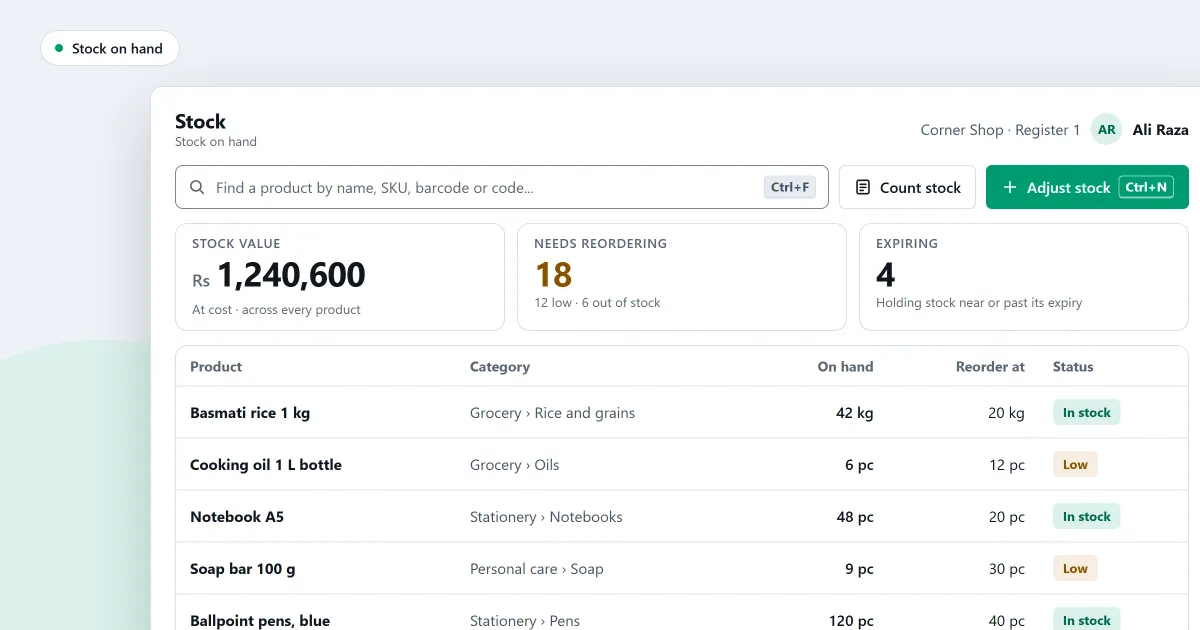
What should you look for in inventory software for a small shop? Start with one question: do you know what is on your shelves right now, without going to look? If not, the shop is running on guesses, and a guess is not a stock figure. The program should give you one figure for each product, and show how that figure came to be. This checklist says what to look for, so you can ask any program the same questions.
One record for each product
Each product needs one record, with one name, one barcode and one stock figure. If the same tin sits in the system twice, you will count it twice, and you may sell what you do not have. Ask how the program stops a second record being made with the same barcode or code. A good answer names the check, and says what happens when the check fails.
Stock changes only with a reason
Every change to stock should have a reason and a record. A delivery, a sale, a return, a damaged item and a count are all changes. A figure you cannot explain is a figure you cannot trust.
Ask what happens when someone makes a mistake. Is the old record edited, which hides what was first written? Or is a new record added that cancels the old one, so the history stays? The second is easier to check later.
Count the shelf, then apply the difference
From time to time, count the shelf by hand. Count without looking at the expected figure, so you are counting the shelf and not copying the screen. Then look only at the lines that differ, count those again, and apply the difference with a reason.
Ask whether the program lets you do this without typing every figure again. Ask how a sale made during a count is handled.
Warnings before a product runs out
Set a minimum for each product, so you see what is low before it is gone. A reorder list is easier to act on when it is grouped by supplier, so you can place one order with each one. Ask whether the list can be printed or exported, so you can send it to a supplier.
Check every delivery against the order
When goods arrive, check them against the order. A short delivery should be noted, so the rest can be chased. A delivery that is more than you ordered should be refused or noted, and not quietly added to the stock. Ask whether the program can record a delivery on the day it arrives, with or without an order.
Expiry dates where they matter
Food, medicines and cosmetics go off. For these goods, ask whether the program records an expiry date with each delivery, and whether it sells the earliest-expiring stock first. Ask what it does with stock that has expired. The answer might be a warning, a block at the counter, or a write-off.
Getting your product list in from a spreadsheet
If your product list already sits in a spreadsheet, typing it in again takes time and invites mistakes. Ask whether the program can import a spreadsheet or a CSV file. Ask whether it shows you each row before anything is saved, and whether it skips products you already have, rather than making copies. Keep the original file, so you can check the result against it.
Who may change stock
Stock should not be changed by everyone who has a sign-in. Ask who can make an adjustment, void a sale that took stock out, or start a count. Ask whether a loss or theft needs a second person to approve it. Ask whether a person can approve their own change. The answer should be no.
A copy of your data
Ask how the data is backed up, where the copy goes, and whether you can restore it. Keep the copy somewhere other than the computer it came from. A backup on the same disk does not help when that disk fails.
Where SellyPOS stands
SellyPOS keeps stock on hand for every product, in every edition. Each change to stock is a record, and the figure on screen is the sum of those records. An adjustment needs a reason, and a mistake is reversed by a new document that names the one it reverses.
Lite is free for ever. It holds up to 20 products, and it has no stock counts, reorder levels, batches, expiry dates, import or export. It also has no backup. Basic and Professional add stock counts, reorder levels, batches and expiry dates, import from a spreadsheet, and bulk edit. Basic and Professional keep a daily backup with its history. Professional adds more stock locations. Who may change stock is set by role, and self-approval is off by default in every edition.
For every part, and the edition that holds it, read the inventory software for a small shop page. It is the page that owns this subject.
Next
If you are not sure which edition fits your shop, read choosing between Lite, Basic and Professional. If you have many products to change, read how to edit many products at once. Then compare prices or download SellyPOS.
Questions people ask
How do I import my products from an Excel file?
The import shows each column of your file on its own row, with up to three examples from its first rows. Choose the product field each column imports as, or Don't import. Recognised columns are already matched. If the workbook has product details on several sheets, they are joined by their column names and read as one list. A row whose name, SKU or main barcode matches a product already in the shop is skipped, and so is a variant of a main product already in the shop. See import products from Excel.