How to track profit in a shop without guessing
How to track profit in a shop with plain arithmetic: what to count, the mistakes that hide the real figure, and what SellyPOS shows the owner.
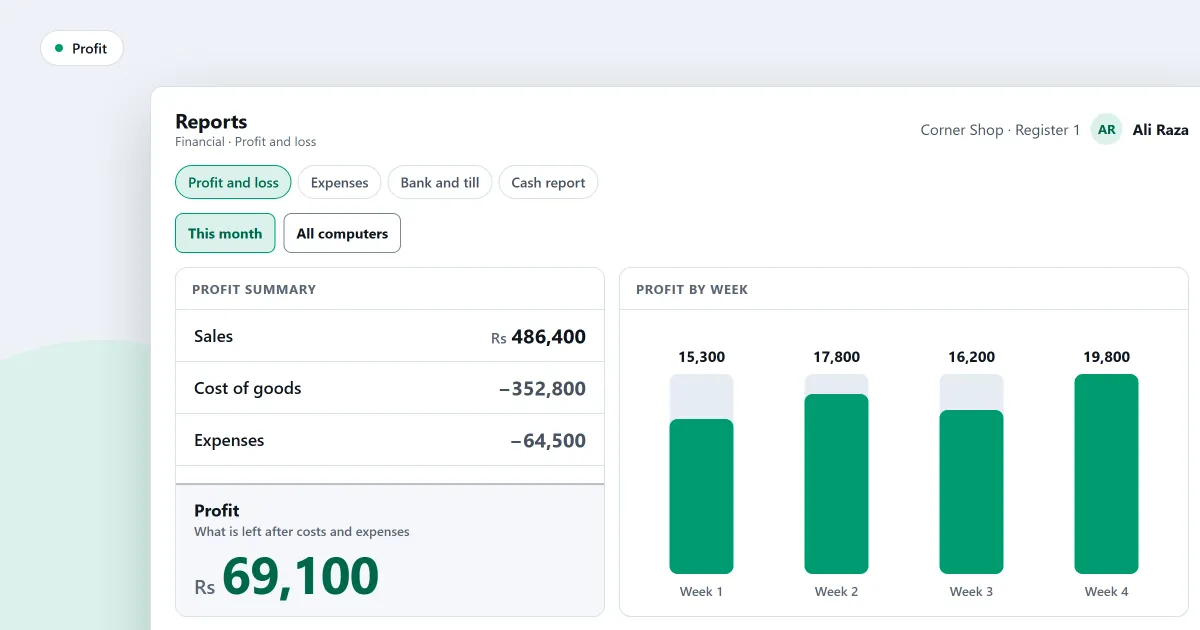
Many shopkeepers know their sales well. Fewer know their profit. To track profit in a shop, start with one plain idea. Profit is what is left after you pay for what you sold, and after the shop’s own costs. Sales alone never show that. This page shows how to work it out, and what to record so the figure is true.
Profit is simple arithmetic
Take the money from sales, after returns. Take away what those goods cost the shop. Take away what the shop spent in the same period, such as rent, power, wages and small cash payments. What is left is the profit.
For example, a cashier sells an item for more than the shop paid for it. But the shop still has to pay the power bill that month. The profit is the sale, minus the cost of the item, minus the power bill. Both costs count.
The mistakes that hide the real figure
- Counting sales as profit. Money in the drawer is not profit when the goods had to be paid for.
- Using an old cost. If a supplier’s price went up, the old cost makes the profit look bigger than it is.
- Forgetting expenses. Power, rent, wages and small cash payments add up. A figure that leaves them out is too high.
- Forgetting returns. Money given back to a customer must come off the sales.
What a shop needs to track
- The cost of each product. Record what you paid, and update the cost when a supplier’s price changes.
- A selling price with a markup you chose. A markup is the amount you add on top of the cost. Decide it on purpose, and check it against the cost.
- Expenses. Record each payment out, with its category and the account it came from.
- Returns. Record each one, so the money given back comes off the sales.
- The day. Decide when your business day starts. A sale made late at night may belong to the day before.
How to calculate profit in a retail shop
Start with the sum you already know. Take the money from sales, and take away the money you gave back for returns. Then take away what those goods cost you to buy. Then take away what the shop spent in the same period, such as rent, power, wages and small cash payments. What is left is the profit. Work it out for the same days each time, so you can compare one month with the next.
How to calculate profit in a medical store
Medical stores use the same sum, with one thing to watch. A medicine has a printed price, its MRP, and that price caps what you can charge. So the profit on each strip depends on what you paid for it, not on the price you would like to charge. Medicine that expires before it sells is a cost too. Write off expired stock as a cost in the period you lost it, or the profit will look higher than it is.
Where SellyPOS stands
SellyPOS records the parts below as you work, rather than leaving them for a summary at the end of the month. The reports and alerts page and the money and accounts page set out each part.
- Markup and minimum price. On a product’s Price and tax tab, you can set a markup over cost, and a minimum selling price that a discount may not cross. This is in every edition.
- The cost question on purchases. When a delivered line costs something different from the cost on file, the screen asks once whether to use the new cost from now on. This is in every edition.
- Expenses. Record what the shop paid out, with its category, its amount and the account it came out of. The expenses report shows what was spent on each type, and its change from the last period. Basic and Professional.
- Profit and loss. Open Statements from the Reports menu, and it shows the profit and loss for this month straight away. You can compare it with the previous period or the same period last year, and open any line to see the entries behind it. Basic and Professional.
- Owner only. Profit is for the people you give permission to see it. Others see sales and expenses only. Basic and Professional.
- The owner’s figures. The Dashboard shows cash, stock value, what customers owe and today’s profit. Basic and Professional.
- Stock value. The stock value report shows, for each category, the cost, the selling price and the profit if all of it sold. Basic and Professional.
- The daily sales summary. It shows the day’s sales, discounts, returns and net. Basic and Professional.
- Salaries. In Professional, profit and loss has a Salaries and wages line.
- Lite. Lite shows sales and returns on its Orders dashboard. Profit, expenses and the financial statements are in Basic and Professional.
To see what a report covers, read how to generate a report. To choose the edition that holds profit, see how to choose an edition.
Next
Check the prices on the pricing page for Basic and Professional. Then download SellyPOS and look at the Orders dashboard on the free edition.