How to count stock in your shop: a stock take, step by step
How to do a stock take in a shop: count the shelf without the expected figure, recount the differences, then apply each one with a reason.
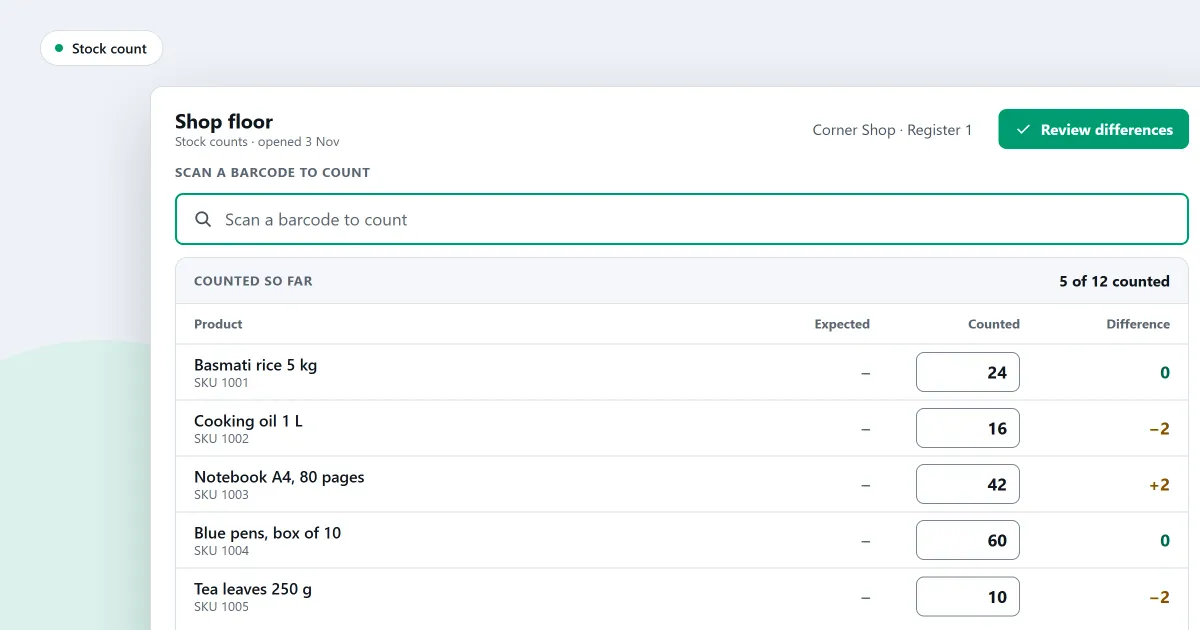
How do you do a stock take in a shop when the shop is busy? Start with the question a stock take answers. What is on the shelf, compared with what your records say? This page sets out how to do a stock take in a shop, step by step, and what to watch for. It also says which parts SellyPOS does. A stock take is also called an inventory count.
Why a shop counts its stock
Records drift. A delivery is not written down. A damaged item is thrown away and never recorded. A sale is rung up on the wrong product. Each one leaves the record out of step with the shelf.
A count shows the difference between the shelf and the record. The difference is where you find the cause: a loss, a mistake, or a movement that was never written down. A count also tells you what you need to order. A shelf that is empty while the record still shows stock will not warn you by itself.
How to do a stock take, step by step
- Choose what to count and when. You can count the whole shop, or one part: one category, one brand or one supplier. A quiet time helps. If you must count while the shop is open, decide how you will handle the sales made during the count.
- Count the shelf, not the screen. Count each product without looking at the figure the program expects. If you read the expected figure first, you will tend to copy it.
- Write each count down, or scan it. Note the product and the number you counted. Where the program takes counts by scanning, scan the barcode and type the quantity.
- Compare with the record. Look only at the products where your count and the record differ. Leave the rest alone.
- Count the differences again. Many differences are a counting slip. Count each one a second time before you change anything.
- Apply the difference, with a reason. Record the change and say why: a delivery not written down, a damaged item, or a loss found. Do not type over the old figure. Record a new change, so the history shows what happened.
- Find the cause. Open the product’s movement history. Each sale, delivery, return and adjustment should appear there. A difference the history cannot explain is the one to chase.
Mistakes to avoid
- Counting from the screen. A count that copies the record proves nothing.
- Changing a figure with no reason. A figure with no reason cannot be checked later.
- Mixing units. Counting boxes when the program counts pieces, or the other way round, gives a false difference.
- Forgetting the sales made during the count. Those sales must be taken off the count once, or the figure is wrong.
- One person counting, changing and approving. Let one person count and another person check the differences.
- Counting only the fast sellers. Slow stock is still stock, and it still ties up money.
Where SellyPOS stands
Stock counts are in Basic and Professional. Lite has no stock counts, and it holds up to 20 products. Every edition keeps stock on hand and records each adjustment.
- Counting. In Basic and Professional, a count covers the whole shop, or one category, one brand or one supplier. It is blind by default, so the expected figure is not shown while you count. You can scan a product’s barcode, type its quantity, and the next scan follows. A flagged line can be counted again.
- Sales during a count. Sales made while a count is open are taken off exactly once. The count stays correct while the shop keeps trading.
- Applying a count. Review only the lines that differ, recount them if needed, and apply the count. Once a count is applied it is read-only, and it stays on record so you can open it again.
- Counting on paper. You can export the count to a spreadsheet, count on paper, and import the filled sheet back. Importing the same file twice is one import, so the count is not doubled.
- Adjustments. In every edition, each adjustment needs a reason and is saved as one numbered document. A mistake is reversed by a new document that names the one it reverses. The original is never edited.
- The movement history. The stock movement report for one product adds up: opening, plus received, less sold, plus returned, less adjusted, equals what is on hand. This is in Basic and Professional.
- Limits. Each role can have limits on stock adjustments, voids and counts. A loss or theft always needs a second person to approve it.
For every part of stock control, and the edition that holds it, read the inventory software for a small shop page. The steps for a count are in how to count your stock. The stock control page lists each stock feature.
Next
If the shop is not set up yet, read how to set up a POS system for a small shop. To work out when to reorder each product, read how to work out a reorder level for each product. Then compare prices or download SellyPOS.
Questions people ask
Which stock tools are free in SellyPOS Lite?
Lite is free for ever. It keeps stock on hand for each product and records every adjustment with a reason. It holds up to 20 products. It has no stock counts, reorder levels, batches, expiry dates, import or export. Those are in Basic and Professional. See the editions.