How to work out a reorder level for each product
How to calculate a reorder level from what you sell each day and how long your supplier takes, with a worked example and what SellyPOS does.
Running out of a product costs you a sale. Ordering too much ties up money on a shelf. A reorder level tells you when to order. To calculate a reorder level, you need one short sum for each product. This page sets out that sum, a worked example, and when to check the figure again.
What a reorder level is
A reorder level is the shelf count at which you should place the next order for a product. When the count falls to that point, the product is due for an order. Some people call it a reorder point. Some shops also keep a separate minimum, a count below which they want a warning. Decide which of the two you mean before you set a figure.
The sum for a reorder stock level
Work it out in three steps.
- Find out how many you sell on a normal day. Take the sales of the last few weeks, and divide by the number of days the shop was open.
- Find out how many days your supplier takes. Count from the day you order to the day the goods reach your shelf.
- Choose a cushion. This is extra stock for a late delivery or a busy week.
Then add it up. Sales per day, times the supplier’s days, plus the cushion. That is the reorder level.
For example, a shop sells about 4 bags of rice a day. The supplier takes 3 days to deliver. The owner adds a cushion of 6 bags for a late delivery or a busy week. Four times 3 is 12. Add the cushion of 6, and the reorder level is 18 bags. When the shelf falls to 18 bags, the owner orders more.
If the figure looks wrong, check the two inputs first. The sales average can be too high if it includes an unusually busy week. Supplier days can leave out the time it takes to check in goods and put them on the shelf.
Which products need a reorder level most
- Products that sell every day, where running out loses a sale.
- Products from a supplier that is slow, or far away.
- Products whose sales rise at certain times, such as before a festival or a school term. Their level changes with the season.
Which products do not need one
- Products you sell only a few times a year.
- Products you can buy the same day from a shop nearby.
- Products you order only when a customer asks for them.
For these, a stock count when you need one is enough.
When to change a reorder level
Check the figure regularly. Change it when:
- your supplier starts to take more days, or fewer;
- sales of a product rise or fall for a season;
- a stock count shows that the shelf and the record do not match;
- you run out, and the cause was the level, not a late delivery.
Where SellyPOS stands
SellyPOS keeps a reorder level for each product, and lists what needs ordering. Reorder levels, the reorder list and draft orders are in Basic and Professional. Lite holds up to 20 products and has no reorder levels. The inventory software page and the stock control page set out the whole stock side.
- Reorder levels on the product. The product form has a tab for the minimum stock, the reorder point, the reorder quantity and the preferred supplier, for each location. Basic and Professional.
- Many products at once. Set those figures for many products on one screen. The levels are set by hand. SellyPOS does not work them out from your sales. Basic and Professional.
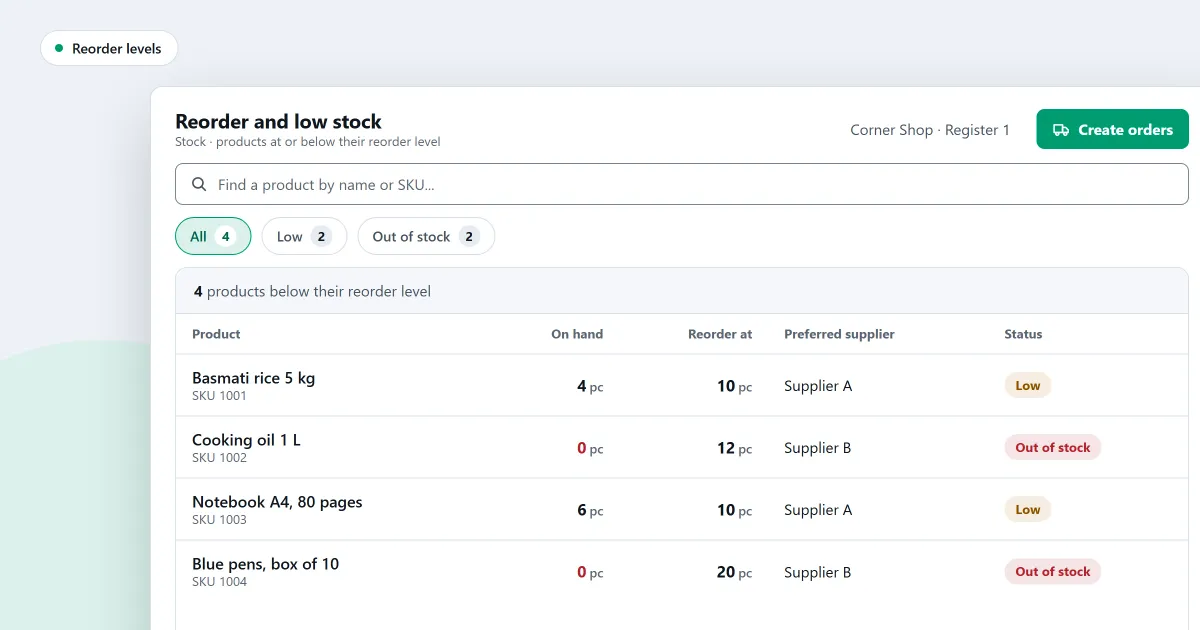
- A list of what needs ordering. The reorder page lists products that are low or out of stock, with their minimum, reorder point and a suggested quantity. Printed or exported, the list is grouped by supplier. Basic and Professional.
- Orders by preferred supplier. Create orders uses each product’s preferred supplier, and the reorder list can be filtered by that supplier. Basic and Professional.
- Draft purchase orders. From the reorder list, the shop drafts one purchase order for each preferred supplier. Items that could not be placed are listed back. Basic and Professional. See purchases and suppliers for the rest of the buying side.
- The dashboard. It shows a count and a list of the shelves running low or out, with a note on what the counts cover. Basic and Professional.
- At the counter. Each search result shows the available stock, and out-of-stock and low-stock products are marked distinctly. Lite, Basic and Professional.
The shelf count the page shows is stock on hand. SellyPOS works it out as the sum of every stock entry recorded for a product, so each sale and stock change leaves a traceable entry. Lite has this too.
To see which edition holds each part, read how to choose an edition.
Next
Count your stock before you set the levels, so the starting figure is true. Read how to count stock in your shop. Then read what to look for in inventory software. Check the prices on the pricing page for Basic and Professional, and download SellyPOS.
Questions people ask
Which stock tools are free in SellyPOS Lite?
Lite is free for ever. It keeps stock on hand for each product and records every adjustment with a reason. It holds up to 20 products. It has no stock counts, reorder levels, batches, expiry dates, import or export. Those are in Basic and Professional. See the editions.