POS software vs billing software vs inventory software
POS software vs billing software: what each kind of program is for, which one a small shop needs, and what to check before you buy.
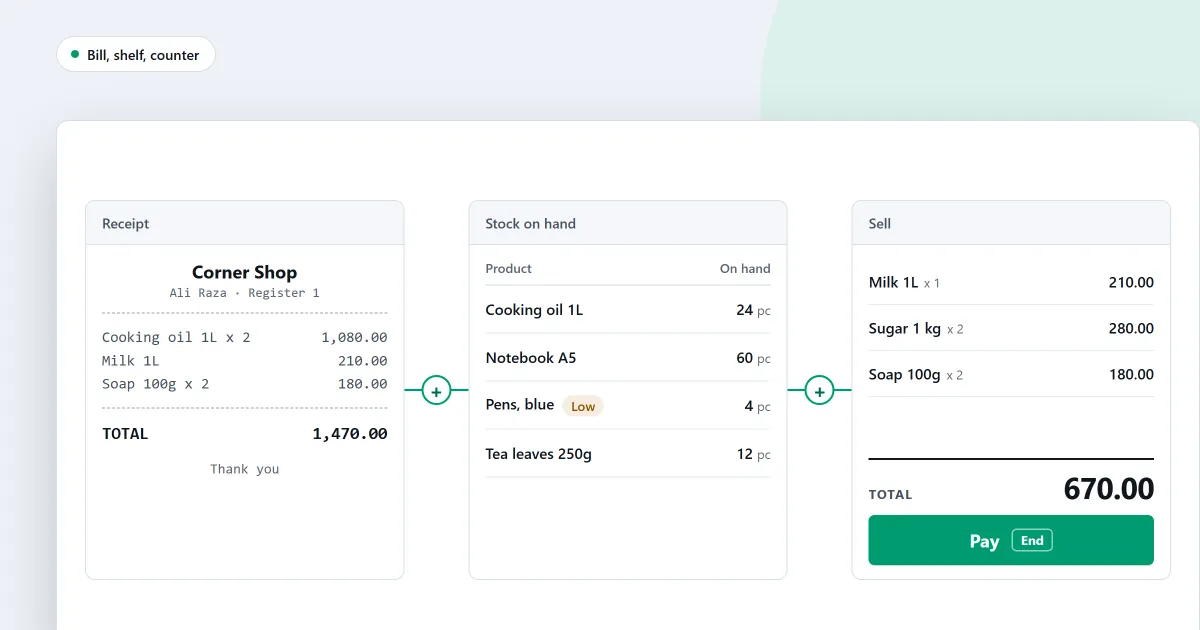
If you search for POS software vs billing software, you want a plain answer. Do you need a program for the counter, one for bills, or one for the shelf? This page explains each job in words a shopkeeper can use. Then it says what a small shop should look for.
What each kind of program is for
Three names come up at almost every shop, and sellers use them loosely. Here is the job each one is meant to do.
- Billing software makes the bill. It writes the items, the prices and the total, and it prints or sends the invoice.
- Inventory software keeps the shelf. It counts what you hold, shows what is running low, and records what came in and what went out.
- POS software runs the counter. It rings up the sale, takes the payment, prints the receipt, and updates the shelf and the money in the same step.
- Accounting software keeps the books. Ask your accountant which records they need from you before you choose.
Which one a small shop needs
A small shop with one counter usually needs the counter and the shelf to agree. If the bill lives in one program and the stock count lives in another, you type each sale twice. A typed sale can be typed wrong. Then the bill and the shelf do not match, and you cannot say why.
A program that does the counter and the shelf together avoids that second typing. A cashier scans a packet of sugar. The bill gets the line, the stock count goes down by one packet, and the sale is kept on record. Nobody has to fill in a second screen.
If all you need is a bill for each customer, a billing program may be enough. Check first whether it also reduces the stock when you sell.
What to check when a seller says POS or billing
Sellers use both words loosely. A program sold as billing may also run the counter, and a program sold as POS may only print bills. Ask these questions before you pay.
- Does one sale change the stock? If it does not, you will count the shelf by hand.
- Does a sale finish with no internet? Ask what happens when the connection drops in the middle of a sale. Read how selling works offline for the question to ask.
- Can you sell on credit and see who owes you? Ask to see the customer page in front of you.
- Does it work with a barcode scanner and a receipt printer? Ask to see both connected.
- Is the price one payment or a monthly fee? The cost post covers how prices are worked out.
- Can you try it on your own computer first?
If you are not sure which kind you need, read choose an edition to see how the editions differ before you ask a seller for a quote.
Where SellyPOS stands
SellyPOS is one program for the counter and the shelf, and it prints bills as well. It is an installed program for Windows, not a website. It sells with no internet connection. The sales counter page lists what the counter does. In short, here is where it stands by area.
- Selling and bills. A scanned code that matches a product is added to the sale at once. One sale can take several payment methods. A finished sale can be opened read-only later. Receipts print at the end of a sale. In Basic and Professional, an A4 invoice can be printed or sent to WhatsApp.
- Stock. Stock on hand is the sum of every stock entry, so each sale leaves its own entry behind. Stock counts by scanning and the reorder list are in Basic and Professional.
- Customers who owe you. The Credit page lists who owes the shop and how long they have owed it. A balance more than 30 days old counts as overdue. This is in Basic and Professional, and the customer list is in every edition.
- Suppliers. Purchase orders and supplier records are in every edition. The list of whom you owe, by supplier, is in Basic and Professional.
- Financial reports. Basic and Professional include sales, stock, customer, supplier and financial reports, a profit and loss for the month, and a balance sheet. Profit is shown only to people who are allowed to see it.
Lite costs nothing and has no time limit. It holds up to 20 products and keeps the last 7 days of sales history and returns. It has no backup, restore, import or export. Basic and Professional each start with a 7-day free trial, and then they are a one-time payment. The amounts are on the pricing page.
If you run a general shop, read about billing software for a small shop, inventory software for a small shop or shop management software for a small shop.
Next
Read what POS software is for the basics, or the POS software features checklist to see what to ask for. See today’s prices on the pricing page, then download SellyPOS and try it on your own computer.
Questions people ask
Does SellyPOS work without internet?
Yes. The till finishes a sale with no internet connection. You need internet once, to sign in with Google and set up your shop, and from time to time to check your licence and updates.