Give a discount on one item or the whole bill
How to add a discount in POS at the counter: take an amount or a percentage off one line of a sale or the whole bill, and see when approval is needed.
This guide shows how to add a discount in POS at the counter. You can take an amount or a percentage off one line of a sale, or off the whole bill. A discount above your limit needs approval first.
What you need
- A sale in progress, with the products the customer is buying.
- The permission to discount one line,
sales.discount_line. A discount above your role’s limit goes for approval. - The permission to discount the whole bill,
sales.discount_invoice. - An edition. A line discount and a whole-bill discount are in Lite, Basic and Professional. A customer group discount is in Basic and Professional.
Discount one line of a sale
-
Select the line. In the cart, press Up or Down until the line you want is selected.
-
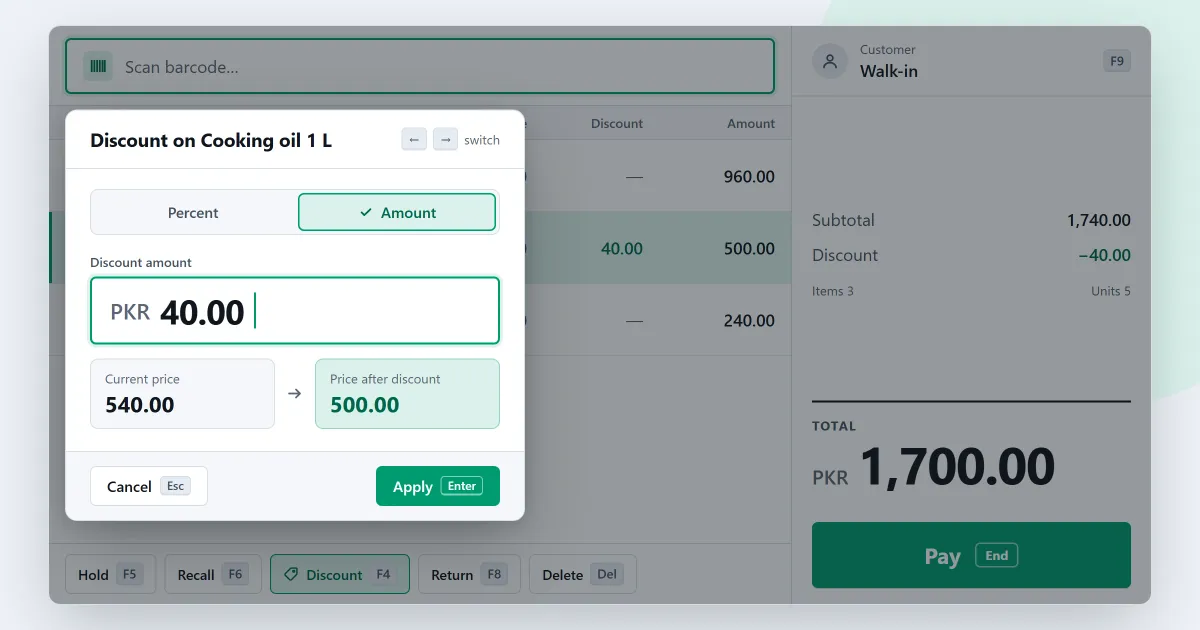
Press Ctrl+D. A box opens, titled Discount on and then the product’s name. It shows what the line comes to now.
-
Type the discount. Type
50for an amount off, or5%for a percentage off. -
Press Enter. The discount is applied to that line. To leave the line as it is, press Esc instead.
-
Check the cart. The Discount column shows what you took off that line.
Discount the whole bill
-
Build the sale. Add the products the customer is buying, as you would for any sale.
-
Press End. The payment screen opens. The whole-bill discount is on this screen.
-
Press Ctrl+Shift+D, or choose Discount. The Discount button is on the payment screen. A box titled Discount on the whole bill opens.
-
Type the discount. Type an amount or a percentage. The box shows what the bill is worth, without the products the shop does not discount.
-
Press Enter. The discount is spread across the lines of the sale. Then take the payment as usual. See how to complete a sale.
A customer group’s discount
If a customer is in a group with a discount percentage, that percentage comes off the products in their sale. It applies by itself once the customer is attached to the sale. The receipt shows it as a group discount. This is in Basic and Professional. See how customer groups are set up.
If something is not as you expect
- The discount needs approval. A discount above your role’s limit goes to someone who may approve it. They choose their name and type their password. The cart stays as it was while they are asked. If they refuse, the discount is not applied.
- The product is set to never be discounted. The discount is refused, and the screen says why. This flag is on the product’s Price and tax tab.
- You want to take a group discount as an amount. A group discount is a percentage only. It has no cap and no fixed amount.
- You want to record why a discount was given. There is no list of discount reasons yet. Discounts are not reported by reason yet either.
- You want to undo a discount. Press Ctrl+Z. Undo steps back through recent cart changes, before the sale is finished.
Next
A discount promotion is a different feature. It is in Professional only. It takes a percentage or an amount off chosen products between two days, and it applies by itself at the counter. See discount promotions and how to set one up.
For the counter itself, see the sales counter. For who may approve a discount, see staff, roles and approvals. For group discounts and credit, see customers and credit.
Pricing shows what each edition costs. Download SellyPOS to try it.
Questions people ask
How do I run a discount on some products for a week?
Give the promotion a name, a percentage or an amount off, and a start and end day. Then choose the products. The review shows a summary and any conflict, and you save the promotion as a draft or activate it. Activation is refused where a product already has a promotion on the same day. On those days the discount applies by itself when a cashier scans or adds one of the products, and it works offline. On each line, the larger of the promotion, a manual discount or a customer group discount is used, and a tie keeps the promotion. A promotion never takes a price below the product's minimum selling price. See discount promotions.