Import your products from an Excel file
Learn how to import products from Excel in Products > Import: choose the file, match the columns, check the rows, then import.
This is how to import products from Excel into SellyPOS. Use it when your product list is already in a spreadsheet, so you do not have to type every product again. Nothing is written until you press Import.
Importing products is in Basic and Professional. Lite does not have import.
What you need
- Basic or Professional. Lite does not have import.
- Permission to import products. Without it, the import is not open to you. An import adds products. It does not change the ones your shop already has.
- A workbook (an Excel file) or a CSV file with your product list.
- The units your products use, already set up in the shop. SellyPOS never creates a unit from a file.
Steps
-
Open Import. In the Products menu, choose Import.
-
Choose the file. To start from a template, press Download workbook, or Download CSV template for a plain file. The workbook has a Products sheet and a Rules sheet, and it is built from your own units, categories, brands and tax groups. Fill it in, or use your own list. Then press Choose a file… and pick the file. If the workbook has more than one product sheet, SellyPOS reads them together as one list.
-
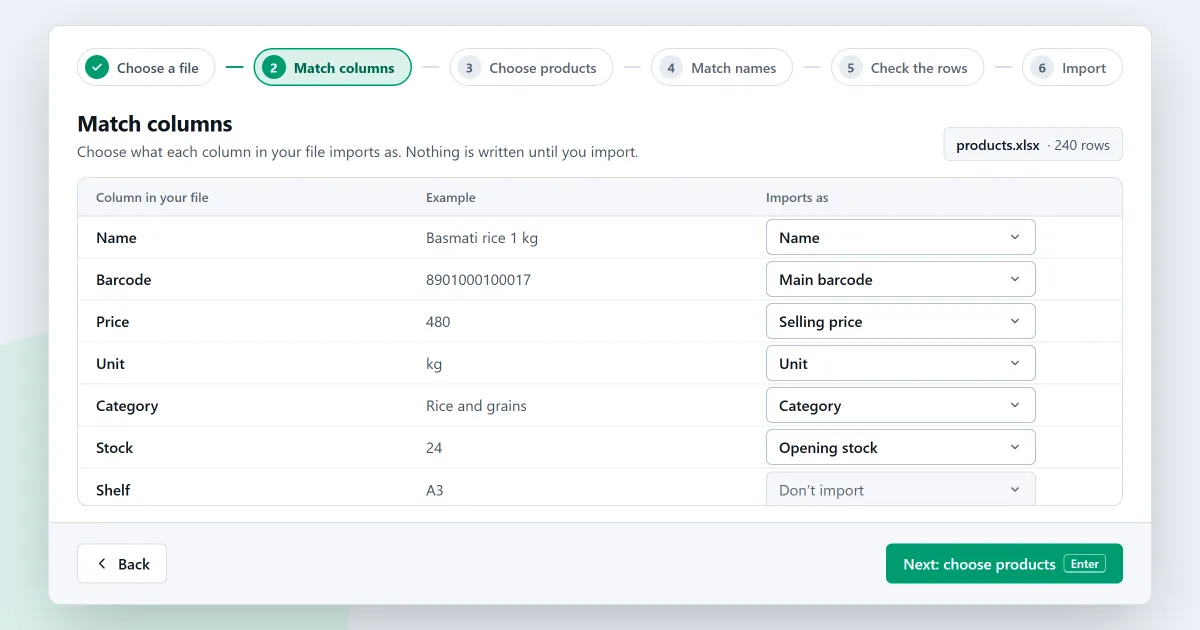
Match the columns. Each column of your file has its own row, with up to three examples from the file. Columns SellyPOS knows are already matched. For any other column, choose the product field it goes into, or choose Don’t import. Then press Next: choose products.
-
Choose products. Choose the categories and brands you want to import. The summary shows how many products and variants each one has. Anything you leave out is never written. Then press Next: match names.
-
Match names. A unit, category, brand, option value or tax group in your file that the shop does not have can be matched with one of your own. A suggestion is used only when you choose it. Then press Next: check the rows.
-
Check the rows. The Check step counts the rows that are ready, the rows that will be fixed, the rows that cannot import, and the rows already in the shop. Each problem names the cell behind it. Then press Next: review.
-
Choose how to finish, then import. Under How do you want to finish?, choose one of three ways. All or nothing is selected at first, and nothing is added unless every row is right. Valid rows only adds the rows that are right. All rows, fixing what is wrong adds every row and fills the gaps with defaults. Then press Import.
A product saved with a default is marked incomplete. After the import, View incomplete products opens that list, so you can finish those products.
If a product is already in the shop
An import does not change products the shop already has. A row is skipped if its name, its SKU or its main barcode matches a product already in the shop. A variant of a main product already in the shop is skipped too. To change products that are already in the shop, use Bulk edit.
If something is not as you expect
- Nothing is imported. If you choose no categories or brands, the import refuses and says why.
- A row is marked as a problem. A SKU or barcode that appears twice in your file makes the later row invalid.
- Opening stock is not added. A product that is not stocked cannot take an opening quantity. Nor can a product that tracks batches, expiry dates or serial numbers.
- A unit is missing. SellyPOS never creates a unit from a file. Add the unit to the shop first, then import the products that use it.
- A sheet is greyed out. A sheet with other columns cannot be joined with the first one. Import it on its own, in another run.
Next
Read import products from Excel for the whole feature, or how the import page works for each step. To change products after they are in the shop, see edit many products at once.
Ready to try it? Download SellyPOS or compare prices.
Questions people ask
How do I import my products from an Excel file?
The import shows each column of your file on its own row, with up to three examples from its first rows. Choose the product field each column imports as, or Don't import. Recognised columns are already matched. If the workbook has product details on several sheets, they are joined by their column names and read as one list. A row whose name, SKU or main barcode matches a product already in the shop is skipped, and so is a variant of a main product already in the shop. See import products from Excel.