What is inventory management? A guide for shop owners
What inventory management means for a shop: knowing what you hold, what is low, what is slow and what went missing, and how SellyPOS keeps count.
Short answer Inventory management is the way a shop keeps track of the goods it holds for sale. It answers four plain questions: what you have, what is running low, what is slow and what went missing. SellyPOS keeps a stock count that follows every sale and stock change.
What is inventory management? Any shop that holds goods it has not yet sold needs it, even a shop with one shelf.
What is inventory management?
Inventory management is the way a shop keeps track of the goods it holds for sale. A shop that manages its inventory knows what is on the shelf, how much is there, what is running low and what has gone missing. It does this by counting, recording each movement and comparing the two.
Inventory is the stock you hold. That includes goods on the shelf, goods in a store room and goods that are on their way in.
What are the four questions it answers?
Four questions cover most of the work: what do I have, what is running low, what is slow, and what has gone missing. Each one has a plain answer. Each answer tells you what to buy, what to price, or what to count next, so it is worth asking all four every time.
- What do I have? Know how many of each product are on the shelf and in store.
- What is running low? Know which products are close to the level where you must order.
- What is slow? Know which products sit for a long time without selling. Check them before you order again.
- What has gone missing? Know where the count and the record no longer agree.
How does stock move through a shop?
Stock moves in a cycle. Goods are received from a supplier, put on the shelf, sold to customers, and counted again from time to time. Each step changes the number you hold, so each step should be recorded. The cycle repeats for every product you sell.
- Receive. Check the delivery against what you ordered, and record what arrived.
- Shelve. Put the goods where you can see the count and a customer can find them.
- Sell. Each sale takes the goods off the count.
- Count. Check the shelf against the record, and correct any difference with a reason.
A missed step is the usual cause of a wrong count. A delivery that is not recorded makes the shelf look short. A sale that is not recorded makes it look full.
How do I know what is on my shelves?
Count the goods, then compare the count with your record. If they match, the record is right for now. If they do not match, look for the cause before you change the figure. Count the same way each time, so the two figures can be compared.
Here is a worked example with round numbers. Your record shows 20 bags of rice at the start of the week. During the week 10 bags arrive and 14 are sold. The record should now show 16 bags, because 20 plus 10 minus 14 is 16. You count the shelf and find 15 bags. The difference is one bag.
Look for the cause first. A sale may have been rung up wrongly, a bag may have been moved to another shelf, or a bag may never have been recorded. Only then change the record, and write the reason down.
How do I find out what went missing?
Compare what the record says with what the shelf holds. Then look at the movements for that product, and ask where each change came from. A small gap seen once is often a counting or recording error. A gap that keeps coming back points to how the goods are handled.
Keep a short note with each correction. For loss or theft, a second person should check the figures before the loss is accepted.
Where SellyPOS stands
SellyPOS keeps the count for you. Stock on hand is the sum of every stock entry recorded for a product, so each sale and stock change leaves a traceable entry. Lite has that count too, and it holds up to 20 products.
- Stock on hand that follows every movement. Each product’s count is the sum of its recorded entries. Lite, Basic and Professional.
- Count by scanning, then apply the difference. Scan the products, review only the lines that differ, recount if needed and apply the count. Once a count is applied, it is read-only. Basic and Professional. Counting one product or one section, and showing who counted, have no screen yet. Read how to count your stock.
- Products low on stock, with a reorder list. The reorder page lists products that are low or out of stock, with their minimum, reorder point and a suggested quantity. Basic and Professional.
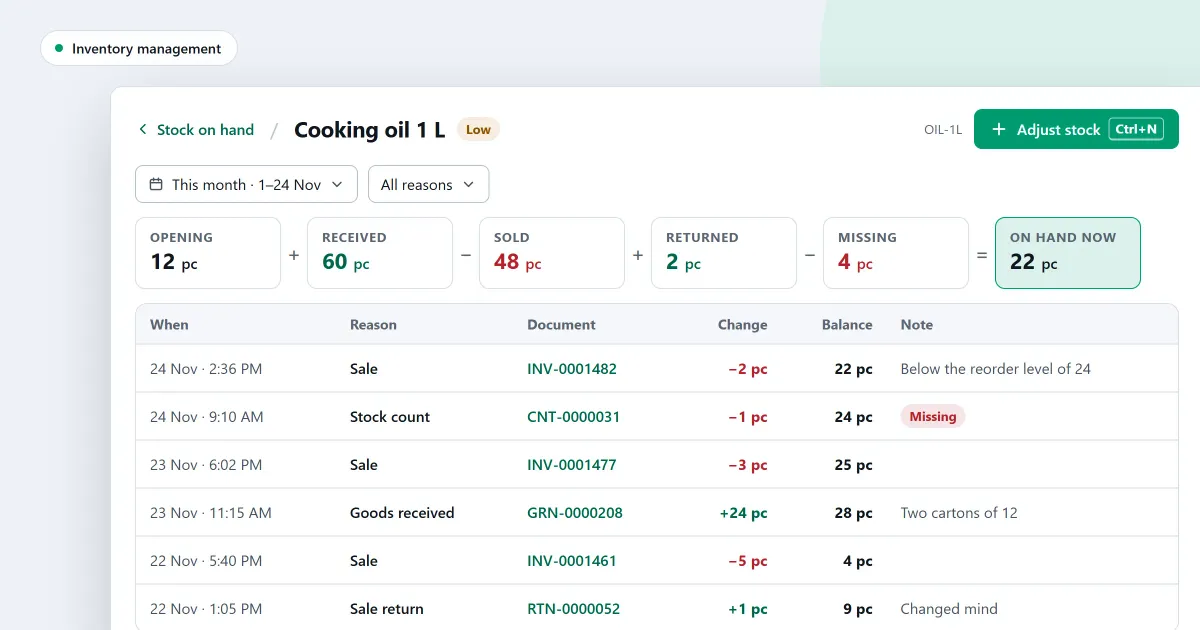
- One product’s movements. The stock movement report lists one product’s movements, newest first, and adds them up from the opening count to what is on hand. Basic and Professional.
- Where stock keeps going missing. A report by category, location, month and counter, built from the counts you have already done. Basic and Professional.
- Limits on stock changes for each role. The shop can set a limit for each role on stock adjustments, voids and stock counts. Loss or theft always needs a second person to approve it. Lite, Basic and Professional.
The inventory software page and the stock control page set out the whole stock side. To see which edition holds each part, read how to choose an edition.
Next
Count one shelf this week, and compare it with the record. Read how to count stock in your shop for the steps, then what to look for in inventory software. Check the prices on the pricing page and download SellyPOS to try it.
Questions people ask
Which stock tools are free in SellyPOS Lite?
Lite is free for ever. It keeps stock on hand for each product and records every adjustment with a reason. It holds up to 20 products. It has no stock counts, reorder levels, batches, expiry dates, import or export. Those are in Basic and Professional. See the editions.
How do I import my products from an Excel file?
The import shows each column of your file on its own row, with up to three examples from its first rows. Choose the product field each column imports as, or Don't import. Recognised columns are already matched. If the workbook has product details on several sheets, they are joined by their column names and read as one list. A row whose name, SKU or main barcode matches a product already in the shop is skipped, and so is a variant of a main product already in the shop. See import products from Excel.
