Moving from a notebook or spreadsheet to POS software
How to move from a notebook or spreadsheet to POS software: what to bring over, how to set opening stock, a checked import and a day of running both.
Short answer To move from a notebook or spreadsheet to POS software, list your products and opening stock, import them, check the result, and run the old and new records side by side for a short time before you switch.
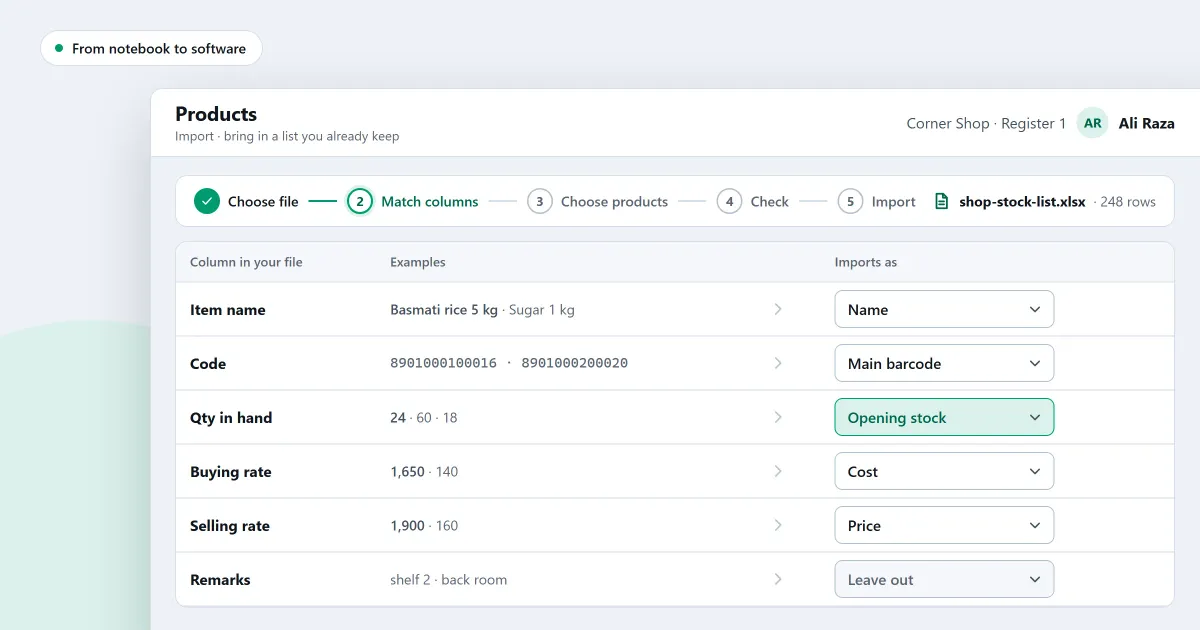
How do you switch from a spreadsheet to POS software without losing track of stock on the first day? The move goes better with a plan. Write down what you have, load it in a set order, and run both systems for a short time before you stop the old record. The first part lists what to bring over. The last part shows what SellyPOS does at each step.
What should I bring over from my notebook or spreadsheet?
Bring over your products, your opening stock, the customers who owe you money, and your suppliers. Leave out old sales history unless you need it to answer a question. Write the products down first, because stock counts and sales all refer to a product.
Keep the old book on the shelf for a while. Do not throw it away on the day you switch.
How do I set the opening stock?
Set the opening stock by counting each product on the shelf once, on a set day. Write the count down as the starting figure, and do not copy the number from your old notes. A stock count gives the true starting point, so do it before you import anything.
Can I check an import before it saves anything?
Yes, in Basic and Professional. The Check step runs before anything is written. It counts the rows that are ready, will be fixed, cannot import or are already in the shop, and names the cell behind each problem. Fix the file, then import it.
How do I switch over in one week?
Switch over in five steps across one week. List the products and customers, set the opening stock, import and check, and run both systems side by side for a day. Then stop using the old book. Keep the old notes for a while after the switch.
- List your products and customers. Write each product with its name and unit. Write each customer who owes you, with the amount and its date.
- Set the opening stock. Count the shelf, as described above.
- Import and check. Import the products from a file, and read the Check step before you accept the result.
- Run both for a day. Record every sale in the new program and in the old book. At the end of the day, compare the two.
- Switch. When the day’s totals match, stop writing in the old book. Explain any difference first.
Where SellyPOS stands
- Products from a spreadsheet. Import products from a spreadsheet workbook or a CSV file in four steps: choose the file, match its columns, check the rows and import. It starts from a downloadable template. An import only adds products. It does not update existing ones, and price lists are not part of it. Basic and Professional.
- A workbook with examples. Download workbook gives a workbook with a Products sheet, a Rules sheet and four sample sheets. It is built from the shop’s own units, categories and brands. Basic and Professional.
- Opening stock. Opening stock in the file is recorded as a stock adjustment when its product is created. A product that is not stocked, or that tracks batches, expiry dates or serial numbers, cannot take an opening quantity. Opening stock above the approval limit of the person importing is not yet handled. Basic and Professional.
- The Check step. Before anything is written, it lists the categories, brands and values that will be created. Basic and Professional.
- Customers and suppliers. Import customers and suppliers from a CSV file. The file is checked first, and one wrong row refuses the whole file. Products are imported from the Products page. Basic and Professional.
- Opening balances. Enter a customer’s opening balance with its date, either as an amount they owe or as an amount the shop owes. It is the first entry in their ledger and is never silently overwritten. Basic and Professional.
Lite holds up to 20 products and has no import, so a shop that moves its full list in needs Basic or Professional. The product import is set out on the products and catalogue module and its import products section. For the buying and selling side of the same move, see the setup and documents module.
Next
Read how to set up a POS system for a small shop. Then read how to import your customers and suppliers and how to import your products from a file. Compare the editions on the pricing page, then download SellyPOS.
Questions people ask
How do I import my products from an Excel file?
The import shows each column of your file on its own row, with up to three examples from its first rows. Choose the product field each column imports as, or Don't import. Recognised columns are already matched. If the workbook has product details on several sheets, they are joined by their column names and read as one list. A row whose name, SKU or main barcode matches a product already in the shop is skipped, and so is a variant of a main product already in the shop. See import products from Excel.
