1D or 2D barcode scanner: which does a shop need?
What 1D and 2D barcodes are, which scanner reads which, a test to run before the first sale, and what SellyPOS needs from a barcode scanner.
Short answer A 1D barcode is the striped code on many product packs, and a 2D code is a pattern of dots or blocks that holds more data. A shop that only scans product barcodes can start with a scanner that reads 1D codes. Test any scanner with your own products before the first sale.
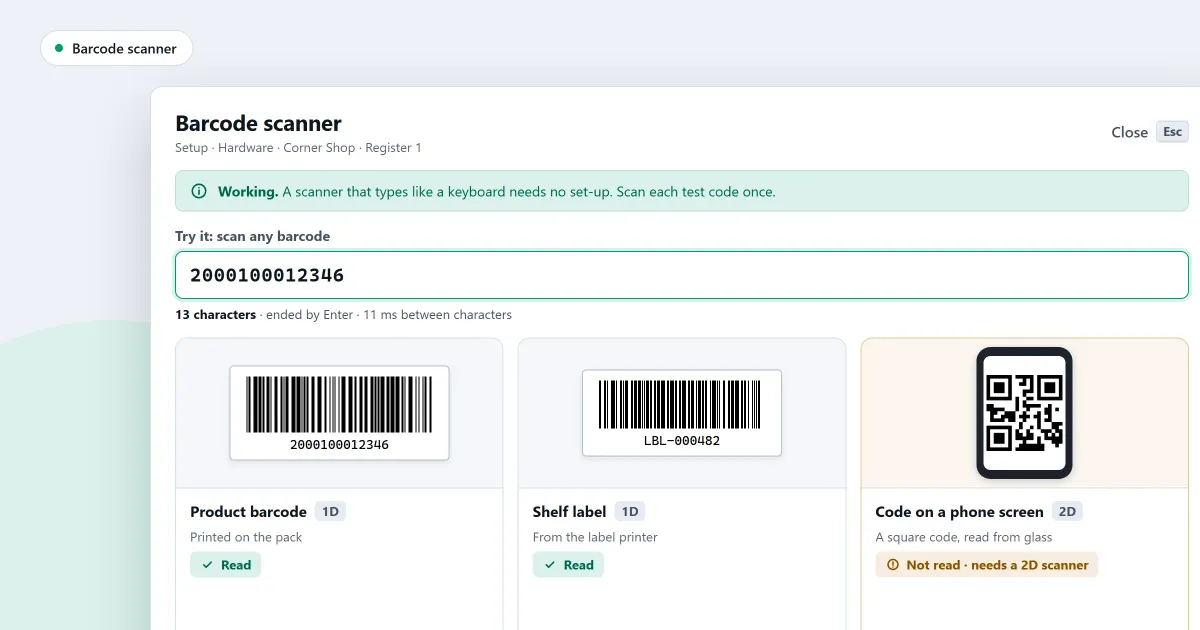
What is the difference between a 1D and a 2D barcode scanner, and which does a shop need? A barcode scanner only helps if it reads the codes printed on your products. This page explains the two code types, which scanner reads which, a test you can run before the first sale, and what SellyPOS needs from a scanner at the counter.
How does a 2D barcode differ from a 1D barcode?
A 1D barcode holds its data in a row of bars and spaces, read from side to side. A 2D barcode holds data in a block of dots or squares, read in two directions, so it can hold more. Both are read by a scanner, and a shop needs the scanner to read the type printed on its products.
Which scanner reads which code?
A laser scanner reads a 1D barcode by sweeping a line of light across it. An imager takes a picture of the code, so it usually reads 2D codes too and copes better with a damaged or dim code. Check the code types a scanner lists before you buy, because not every scanner reads both.
| Scanner type | Reads | Often better for |
|---|---|---|
| Laser | 1D codes | Product packs with striped codes |
| Imager | 1D and 2D codes | Damaged codes, and codes shown on a screen |
Does a small shop need a 2D scanner?
A small shop needs a 2D scanner only if the codes it must read are 2D, such as a code on a screen or a code on a ticket. A shop that scans product packs with striped codes can manage with a 1D scanner. Decide from the codes you actually scan.
Do not choose by the price of the scanner. Ask the seller which code types the scanner reads, and test it on your own products.
How do I test a scanner before the first sale?
To test a scanner, open the scanner test box and scan one code from each kind of product you sell. Check that each code arrives whole, and that the box shows whether an Enter press came at the end. Then scan a damaged label to see what the scanner does with it.
Work through this list:
- Scan a striped code from a common product, and check that it arrives whole.
- Scan a code from a product in a different packet, such as a bottle or a box.
- Scan a damaged or dim label, and note whether it reads.
- Note whether an Enter press came at the end of each scan.
- Write down any code that fails, and keep the list with the scanner.
The test does not look anything up, so a code that arrives whole has only been checked for arrival, not for a product. Add the product afterwards and scan it again.
What does SellyPOS need from a scanner?
SellyPOS has one entry field that takes a scan or a typed name, and an exact barcode adds the product at once. Test the scanner in the scanner tab before the first sale.
Where SellyPOS stands
The scanner test and the one entry field are in every edition. A scanned product is added at once in every edition as well.
- A test box for the scanner. The scanner tab has a try-it box. Scan a code into it to see what arrived, how long it was, and whether it ended with Enter. It looks nothing up. Lite, Basic and Professional.
- A scanned product is added at once. A scanned code that matches a product exactly is added to the sale with no Enter press. The scan makes an audible sound, and a failed scan sounds different. Lite, Basic and Professional.
- One field for scans and search. One entry field works out what was typed. An exact barcode, SKU or code adds the product at once, and anything else opens a search list. The raw input half of scanner detection is not built yet. Lite, Basic and Professional.
- Find a product by the last digits of its code. Type the last few digits of a barcode, such as from a damaged or obscured label, and the matching product appears. Lite, Basic and Professional.
For the setup steps, read how to set up a barcode scanner for POS. If the scanner does not read, read barcode scanner not scanning: what to check. The barcode scanning page and the hardware module cover the counter side.
Next
Pick five products with different kinds of label, test each one, and keep the list beside the scanner. For how to choose the scanner itself, read how to choose a barcode scanner for a small shop. See the pricing page for the editions, and download SellyPOS.
