Print barcode labels for your products
How to print barcode labels for your products in Professional: choose a ready format, pick products and copies, check the label, then print.
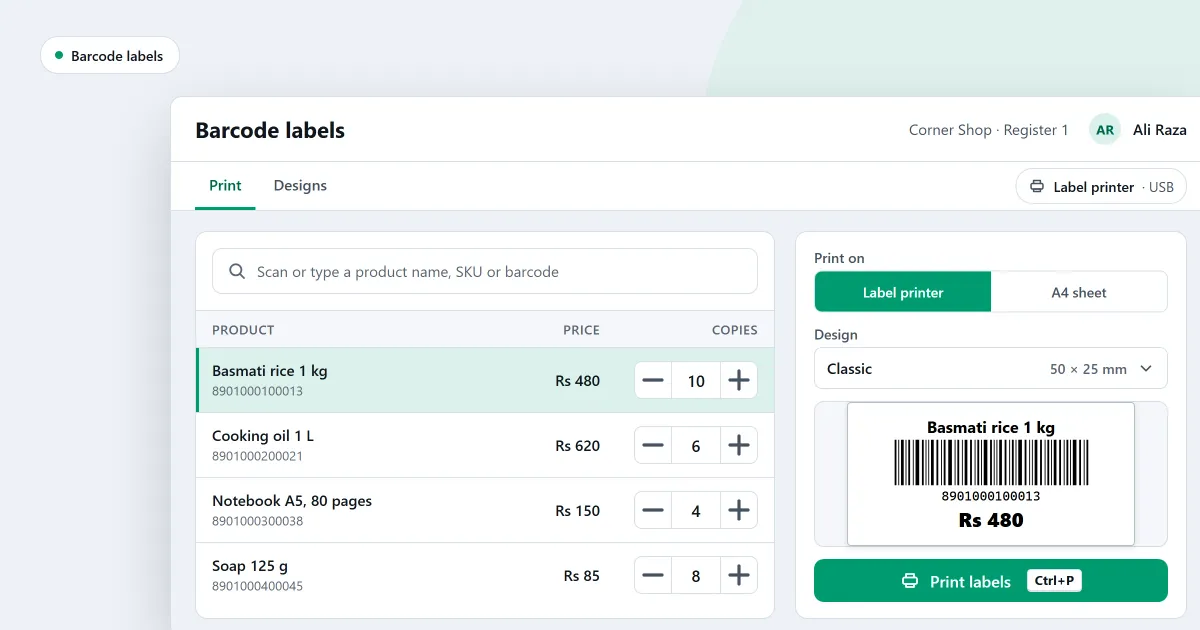
Barcode labels are in Professional only. If your shop is on Professional, this is how to print barcode labels for your products. You choose a paper and a ready format, pick the products and the copies, check the label at its real size, and then print.
What you need
- Professional. Barcode labels are not in Lite or Basic.
- The permission to Print barcode labels. Staff > Roles and permissions shows it under that name.
- A barcode on each product you want to label. A product with no barcode can be given a shop barcode first.
- A label printer, or A4 paper if you print on sheets.
Steps
-
Make a design. Open Barcode design in the Products menu, and press New design. In the Paper step, pick the paper in your printer, or a sheet size. In the Format step, choose one of the ready formats that fits that paper. Tick what shows on the label, then press Save.
-
Open Print barcode labels. It is in the Products menu. Under Design, choose the design to print with. Under Print on, choose a label printer or A4 sheets.
-
Choose the products. In the search box, scan or type a product name, SKU or barcode, and choose the product to add it to the list. You can also filter the Products list and press Print labels. The products on that page come here, one label each.
-
Set the copies. Type the number of copies in the Copies column. Or tick Use available stock as copies, and each product gets as many copies as the shop holds.
-
Check the label. The Preview shows the label at its real size, just as it will print. Step through the labels to check each product.
-
Print. Press Print labels, and check the labels that come out.
If something is not as you expect
- You do not see Print barcode labels. Label printing is in Professional only. See choose an edition.
- Barcode design is not in the Products menu. Your role does not have the permission to make label designs.
- A product has no barcode. Give it a shop barcode first. One button gives a shop barcode to every product in the list that has none, and then its labels can be printed.
- A product is not offered for copies from stock. Only products with stock are offered when you use the stock on hand as the number of copies.
Next
Read barcode labels for the whole feature, or how to print barcode labels for your products for a longer guide.
Labels need Professional. The prices are on the pricing page, and you can download SellyPOS to try it.