Barcode types explained: EAN-13, Code 128 and QR
Which barcode type a shop should use for packaged goods and its own codes, and what SellyPOS makes, prints and refuses when a code is already in use.
Short answer A barcode type is the pattern of bars or dots that carries a code. Packaged goods often carry EAN-13. Code 128 can hold letters and digits, which suits a shop's own codes. A two-dimensional QR code is read by phone cameras. SellyPOS makes a barcode for a product that has none, but it has no Code 128 option.
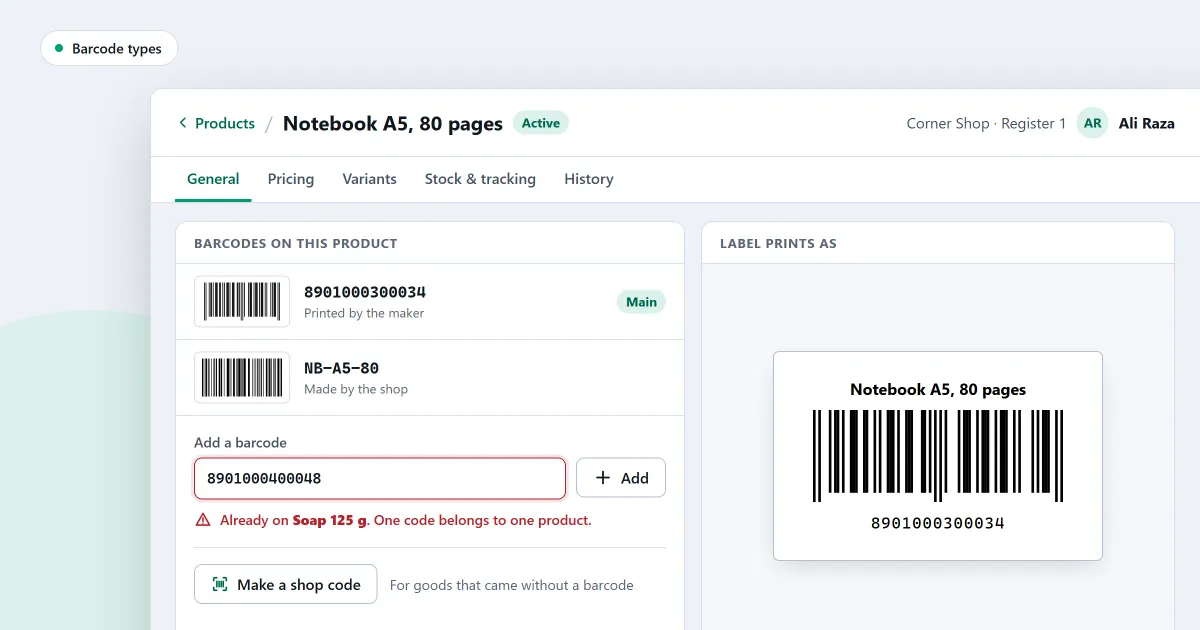
When you ask a barcode generator for a code, it may offer several formats, such as EAN-13, Code 128 and QR. This page explains what each one is for, which one to use for your own products, and what SellyPOS does with a code. The worked example is round on purpose, so each step can be checked by hand.
What is the difference between EAN-13, Code 128 and QR?
EAN-13, Code 128 and QR are three barcode types. EAN-13 is the code packaged goods often carry from their maker. Code 128 is a line code that can hold letters and digits, and shops often use it for their own labels. A QR code is a two-dimensional code that a phone camera reads.
The three types side by side:
| Type | What it is for | Who makes the number |
|---|---|---|
| EAN-13 | Packaged goods that come from a maker | The maker, printed on the pack |
| Code 128 | Codes for loose goods and items the shop makes | The shop |
| QR code | Links, and longer text that a phone reads | Whoever makes the code |
Two rules follow from the table. A pack that already has a maker’s barcode should keep it, so the till finds the same code the scanner reads. A code the shop makes must be unique, because a number used twice sends the wrong product to the till.
Which barcode type should a shop use for its own products?
For your own products, give each one a code the shop makes itself. Loose goods, bags and items made in the shop have no barcode from a maker, so the shop must give them one. Pick one type and use it across the shop, and check that your scanner reads it before you print a sheet.
Suppose the shop makes three kinds of own-made goods in one week, and each bag needs labels. The table multiplies the bags made by the labels per bag to give the labels to print.
| Product | Bags made | Labels per bag | Labels to print |
|---|---|---|---|
| Spice mix | 20 | 1 | 20 |
| Tea blend | 15 | 2 | 30 |
| Gift box | 5 | 4 | 20 |
| All products | 40 | - | 70 |
Follow these steps when the shop starts to print its own codes:
- Keep a maker’s barcode. If a pack already has one, use it, and do not make another for the same item.
- Write each shop code down once. Keep one list of every code the shop makes, so no number is used twice.
- Print one test label. Scan it with the scanner you will use at the counter before you print a full run.
Can SellyPOS make a Code 128 barcode?
No. SellyPOS does not offer a Code 128 option. It can give a product a barcode from the shop’s own prefix when the product has none, and it refuses a barcode that another product already uses. Labels are printed from ready formats in Professional.
If your shop needs Code 128 labels, do not count on SellyPOS to make them. Print a test label first, and scan it with your scanner, before you rely on any code type at the counter.
Where SellyPOS stands
Four barcode features are in SellyPOS. Each one names its edition.
- A barcode for a product that has none. Press Generate barcode on a product’s form to create one from the shop’s own prefix. The next number is shown beside the prefix, and a number is never reused. Lite, Basic and Professional.
- Shop barcodes for every product that has none. One button gives a shop barcode to every product in the list that has none, and labels can then be printed for those products. Lite, Basic and Professional.
- One barcode, one product. A product can have several barcodes. A barcode that another product already uses is refused, and the screen names the product that holds it. Lite, Basic and Professional.
- Labels from ready formats. Pick a paper and one of the ready formats, tick what shows on the label, and check it at true size before you print it to a label printer or to A4. Labels cannot be drawn by hand: no dragging, layers or rotating. Professional only.
The barcodes and labels section of the products module sets out these settings, and the barcode scanning page covers the scanner side. To add a product first, read how to add a product.
Next
Read how to print barcode labels for your products and how to print barcode labels. For what a barcode is in the first place, read what is a barcode and how does a shop use one. Compare the editions on the pricing page, then download SellyPOS.
