58 mm or 80 mm thermal paper: which roll to buy
What thermal paper is, why printing fades, how to match a roll to the printer width, and how SellyPOS works with 58 mm and 80 mm receipt printers.
Short answer Thermal paper is receipt paper with a heat-sensitive coating, so the printer marks it with heat and no ink. Choose the roll width that matches the printer, 58 mm or 80 mm, and keep rolls away from heat, light and damp. SellyPOS works with 58 mm and 80 mm thermal printers.
Which roll of receipt paper should a shop buy? Which thermal paper roll should a shop buy? The answer starts with the printer. A roll that does not fit the printer is no use, however it is priced. This page covers what thermal paper is, how to choose the width, how to store the rolls, and what SellyPOS does with the printer.
What is thermal paper?
Thermal paper is a roll with a coating that darkens where the printer’s head applies heat. There is no ink or ribbon to run out, only the paper. The printing depends on the coating, so heat, light and rubbing can fade a receipt over time.
Which roll width should I buy?
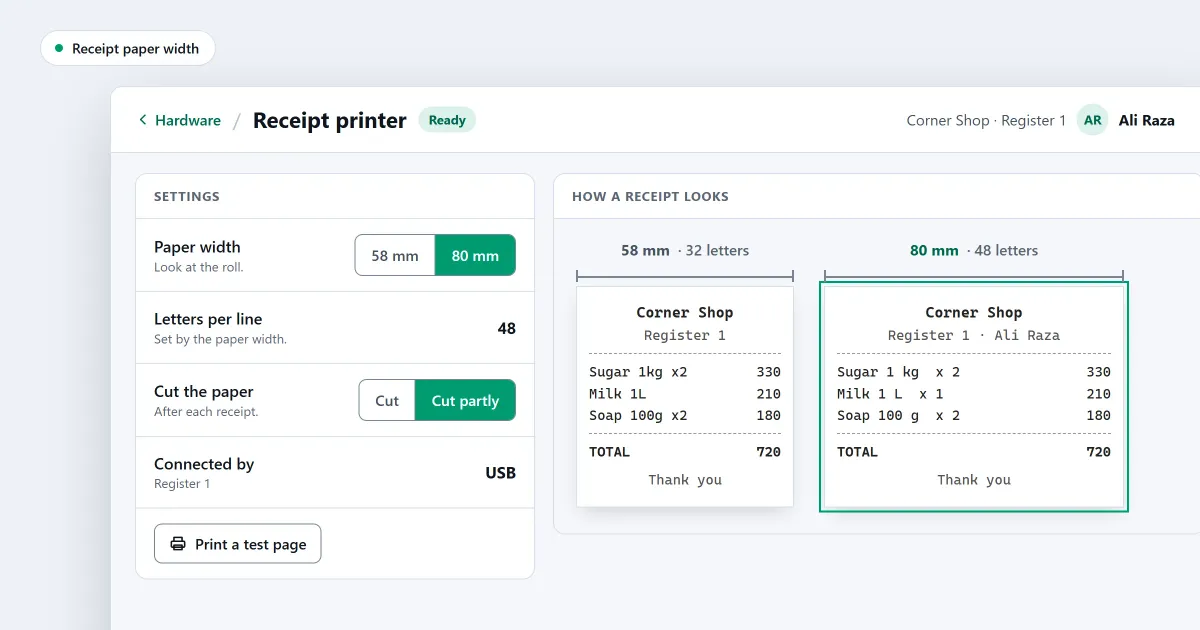
Buy the width the printer takes, which is either 58 mm or 80 mm. A 58 mm roll is narrower and suits a counter with little room. An 80 mm roll fits more characters on each line. Check the printer’s paper holder before you buy, because a roll that is too wide will not fit.
| Roll width | Usually suits | What it means for the receipt |
|---|---|---|
| 58 mm | A narrow printer and a short receipt | Fewer characters on each line |
| 80 mm | A wider printer and a receipt with more lines | More characters on each line |
How do I match the roll to the printer?
Match the roll to the printer by checking the printer’s paper holder and the width it is set to. In SellyPOS, the printer’s settings include letters per line, which you set to suit the width you chose. Print one test receipt before a busy hour, so any problem shows while the counter is quiet.
Use this checklist before you order:
- Printer width. The roll must fit the paper holder.
- Roll width. Set the same width in SellyPOS as the paper you buy.
- Roll length. A longer roll means fewer changes at the counter.
- Storage. Heat, light and damp fade the print, so store the spare rolls well.
How should I store thermal paper?
Store thermal paper in its packet, in a dry place away from heat and direct light. Do not leave a roll on a hot counter or near a window. Keep the rolls off the floor and out of damp rooms, and use the oldest roll first.
What do I do when the receipt prints faint?
If the print is faint, first check the roll: an old roll, or one kept in heat, can print faint. Put in a new roll of the right width and print a test receipt. If the print is still faint, check the printer’s settings and its connection.
The receipt printer not printing, or printing faint article sets out those checks in order.
Where SellyPOS stands
SellyPOS prints receipts on thermal receipt printers of 58 mm or 80 mm width. The printer steps and the paper settings are in every edition.
- 58 mm and 80 mm thermal printers. Receipts print on thermal receipt printers that are 58 mm or 80 mm wide. Serial printers are not supported yet. Lite, Basic and Professional.
- Add a printer in guided steps. Choose how the printer is connected, find it, name it, print a test page and then save it. The connection types include USB and Bluetooth. Lite, Basic and Professional.
- Change the paper, the cut and the default setting. Open a printer to change its name, its paper, its cut and its default setting. Under More settings you set letters per line and the blank lines before the cut. Lite, Basic and Professional.
The steps for connecting a printer are in how to connect a receipt printer to POS. The receipt printing page and the hardware module set out what SellyPOS prints and how it is connected.
Next
Measure the paper holder on your printer before you order a roll. For the wider question of which printer to buy, read how to choose a receipt printer for a small shop and thermal, inkjet or laser printer for a shop. See the pricing page for the editions, and download SellyPOS.
Questions people ask
Do I need a receipt printer or a barcode scanner?
No. Without a barcode scanner, you find products by typing their name or code, and receipt printing can be turned off when no printer is connected. When you add a receipt printer, SellyPOS works with 58 mm and 80 mm thermal printers over USB or Bluetooth. Hardware it works with.
