What is a barcode and how does a shop use it?
A barcode is a printed code a scanner reads. Learn who prints it, how a shop gives its own goods one, and what SellyPOS does when a code is scanned.
Short answer A barcode is a printed pattern of lines or blocks that a scanner reads and turns into a number. The number identifies one product in your records. In SellyPOS, a scanned code that matches a product exactly is added to the sale at once, and a shop can give its own products a barcode.
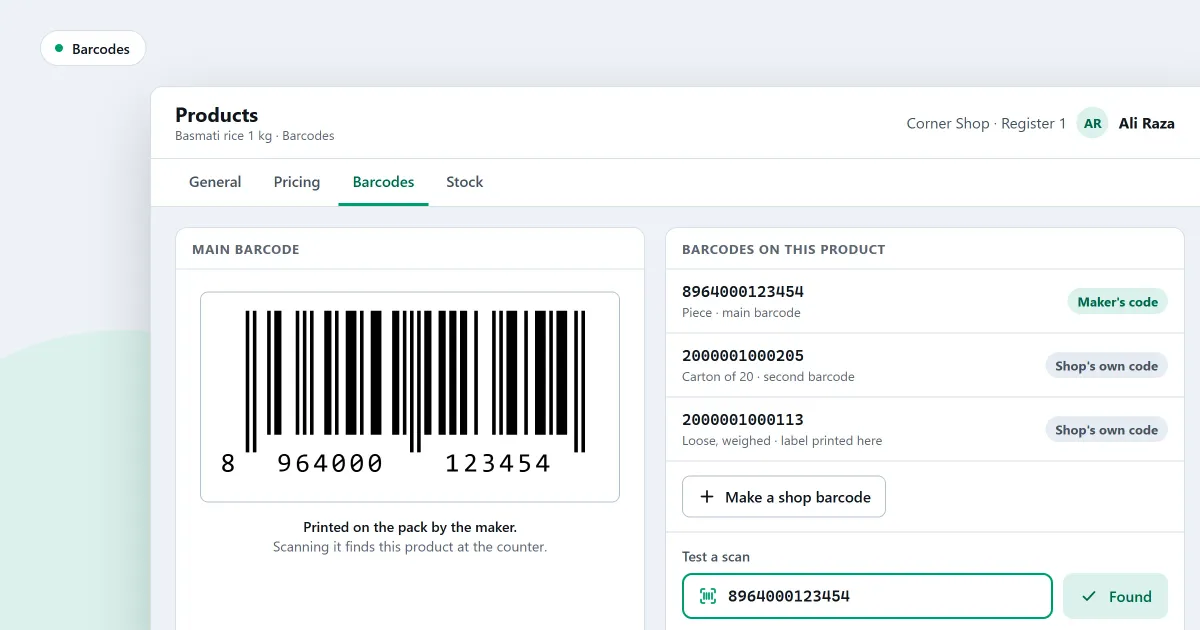
What is a barcode, and does your shop need to use one? A barcode lets the counter find a product by scanning it instead of typing its name. This page explains the idea, who prints the code, and how a shop can give its own goods a barcode.
What is a barcode?
A barcode is a printed code that a scanner reads and turns into a number. The scanner does not know the product’s name or price. It sends the number to the program, and the program finds the product that carries that number. Many barcodes are printed on a label, a wrapper or a box.
The lines are a pattern, and the scanner reads that pattern. The name, the price and the stock are kept in the program, not on the label. One scan always finds the same product, because the number does not change.
Who prints the barcode on a product?
Often the maker does. Many packaged goods already carry a barcode on the wrapper, and a shop can use it as it is. Loose goods, goods packed in the shop and goods a shop makes itself have no barcode from anyone else, so the shop prints its own. The shop’s number must not match another product’s.
Check the wrapper before you print anything. If the product has a printed code, scan it once and check that the right product comes up. Only goods without a code need a shop barcode.
Can two products share one barcode?
No. One barcode should point to one product, or the scanner will add the wrong item. A product can have more than one code, but a code that another product already uses should not be used again. Check before you print labels.
Two different goods with one code means the counter sells the wrong one, and the stock count goes wrong for both. SellyPOS refuses a barcode that another product already uses, and names the product that holds it.
How does a shop give a product a barcode?
Give the product a barcode of the shop’s own, print a label for it and stick the label on the goods. In SellyPOS, press Generate barcode on a product’s form, or use the one button that gives a shop barcode to every product in a list that has none. A number is never reused.
- Check the goods have no code. Look at the wrapper first.
- Give the goods a shop barcode. Use one number for each product, and never reuse one.
- Print the label. Use a label printer, or a sheet of A4 if that is what you have.
- Check the label at true size. Scan it before you stick it on the goods.
Where SellyPOS stands
SellyPOS uses the barcode to find a product at once. Most of the counter side is in every edition. Ready-made label formats are in Professional only.
- A scanned code adds the product at once. A scanned code that matches a product exactly is added to the sale with no Enter press, and the scan makes an audible sound. Lite, Basic and Professional.
- One barcode, one product. A product can have several barcodes. A barcode another product already uses is refused, and the screen names the product that holds it. Lite, Basic and Professional.
- A shop barcode for products that have none. One button gives a shop barcode to every product in the list that has none, so labels can then be printed for them. Lite, Basic and Professional.
- Generate a barcode on one product. Press Generate barcode on a product’s form. The next number is shown beside the shop’s prefix, and a number is never reused. Barcodes cannot be made in bulk from that form. Lite, Basic and Professional.
- Find a product from the last digits. Type the last few digits of a barcode, such as from a damaged or obscured label, and the matching product appears. Lite, Basic and Professional.
- Ready-made label formats. Pick a paper and one of the ready formats, tick what shows on the label, and check it at true size before printing to a label printer or to A4. Labels cannot be drawn by hand: there is no dragging, layers or rotating. Professional only.
For the counter side, read the barcode scanning page. For labels, read how to print barcode labels and the barcodes and labels section. The products and catalogue module covers the rest of the product side.
Next
Scan one product in your shop and check it comes up. Read how to test a barcode scanner before your first sale, and how to add a product to give a product its code. Then read what a SKU is and whether you need one. See the prices on the pricing page, and download SellyPOS.
Questions people ask
Do I need a receipt printer or a barcode scanner?
No. Without a barcode scanner, you find products by typing their name or code, and receipt printing can be turned off when no printer is connected. When you add a receipt printer, SellyPOS works with 58 mm and 80 mm thermal printers over USB or Bluetooth. Hardware it works with.
How do I set SellyPOS up for my kind of shop?
At setup, choose your kind of shop from the tiles. The choice sets sensible defaults for the shop and decides which fields a new product shows. Choose your country from a list you can type to filter, and the currency, formats and time zone are filled in for you. You can change the business type later in Settings. To confirm, you type the word CHANGE, and the screen names what the new type changed. Settings you changed yourself are left alone. See POS software for your kind of shop.
