How to set selling prices for your products
Set a selling price from what a product costs you, a markup you choose and easy rounding. Includes a worked example and what SellyPOS does.
Short answer To set a selling price, start from what the product costs you, add a markup you choose, then round the figure to a price your customers pay easily. Set a minimum price for products that must not be discounted. Keep a separate price for each customer group when your shop needs one.
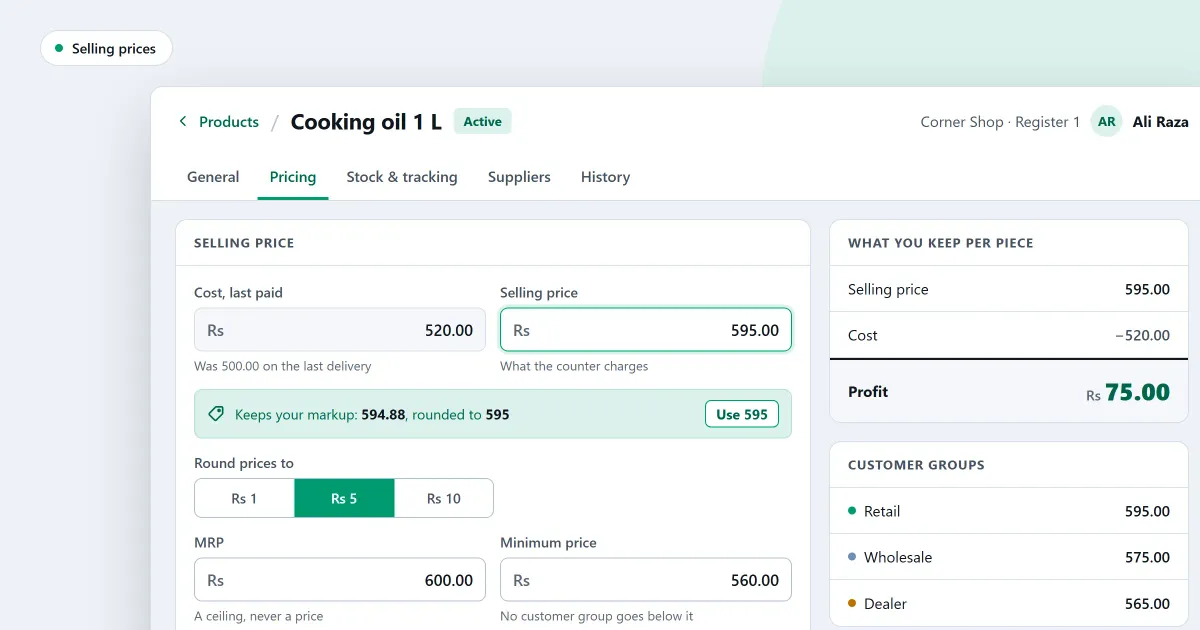
How do you set the selling price for each product in your shop? A price has to cover what the goods cost you, leave you a profit you can keep, and look sensible on the shelf and at the counter. This page gives a simple method, a worked example, and what SellyPOS does with each price. For the difference between markup and margin, read markup and margin: what is the difference?.
What goes into a selling price?
A selling price is built from three things: what the product costs you, the markup you add to that cost, and the rounding that makes the figure easy to pay. Each product may also have a minimum price that a discount cannot cross. Start with cost, because a price below cost loses money on each sale.
Cost is what you paid for one unit. Use the figure on the latest bill, not the figure you remember. The markup is the amount you add on top of that cost, usually as a percentage. Rounding comes last, so that the planned markup is not lost in small steps.
How do you work out a price from cost and markup?
Multiply the cost by one plus the markup. For a cost of 80 and a markup of 25 percent, the price is 80 times 1.25, which is 100. Do the sum for each product, then round the result to the price you want to charge.
Now make the price end in 9. From 100, the shop charges 99. The lowest price a discount may take it to is 90, so the largest discount a cashier can give on that product is 9. The minimum price is what keeps that limit fixed.
How should you round a selling price?
Round a selling price to a figure that is easy to pay with the notes and coins you take. Many shops end prices in 9 or round to the nearest 5 or 10. Round once, at the end, so that the markup you planned is not lost in several small changes.
Rounding is a choice, not a rule. Pick one style for each group of products and keep to it, so that the shelf label and the till agree.
Should every product have a minimum price?
Set a minimum price for a product that must not sell below a certain figure, for example one that customers compare easily, or one you have already discounted hard. A minimum price stops a discount from going under that figure. Products that are discounted often need one most.
Where SellyPOS stands
SellyPOS keeps the price rules on each product, and the counter reads them when a product is added. Each item below names the edition that holds it.
- Markup, minimum price or no-discount flag (Lite, Basic and Professional). On a product’s price page, set a markup over cost. You can also set a minimum selling price that a discount may not cross, a rule that stops its price being changed, or a flag that means it is never discounted.
- One fixed order for each price (Lite, Basic and Professional). The counter picks each price with one fixed nine-level order, and the source of the price is recorded on the sale line. If no price can be found, the counter will not add the product. The order cannot be changed in this version.
- A price list for each customer group (Basic and Professional). Each customer group has its own price list, one line per product, showing where each price comes from and the minimum price. Validity dates, export, import and copying a group’s list are not built.
- Change many selected prices (Basic and Professional). Change selected sets a price, or raises or lowers the chosen prices by a percentage or an amount. It then rounds the result to 1, 5 or 10, or makes it end in 9. A sale price that would pass the MRP is held at the MRP unless you choose otherwise. Scheduled price changes and saved rules that run later are not built.
- A maximum retail price as a ceiling (Lite, Basic and Professional). A product can have a maximum retail price (MRP). A selling price above it is refused, and a price equal to it is allowed. A product with no MRP has no limit.
For each group of prices, see prices for each customer group. To set a minimum price step by step, read how to set a markup, a minimum price or a no-discount flag. The products and catalogue module covers the rest of the product side, and the bulk edit page explains how to change many prices at once.
Next
Read markup and margin: what is the difference? before you change your markup figures. Then read how to set prices for each customer group. Check the prices on the pricing page, then download SellyPOS.
Questions people ask
Can I change the prices of many products at once?
Yes. Choose the products, then use Change selected to set a price, or to raise or lower the chosen prices by a percentage or an amount. The result is rounded to 1, 5 or 10, or made to end in 9. A sale price that would go above the MRP is held at the MRP unless you choose otherwise. Review lists every old and new value before you save, and changes are saved together or not at all. A saved bulk edit can be undone for 24 hours. See bulk edit products.
