Markup and margin: what is the difference?
Markup and margin use the same cost and price but measure them differently. See a worked example, the common mistake, and how SellyPOS shows each figure.
Short answer Markup is the amount added to a product's cost. Margin is the share of the selling price that is profit. Both use the same cost and price, so they give different percentages. A product costing 80 and selling for 100 has a markup of 25 per cent and a margin of 20 per cent.
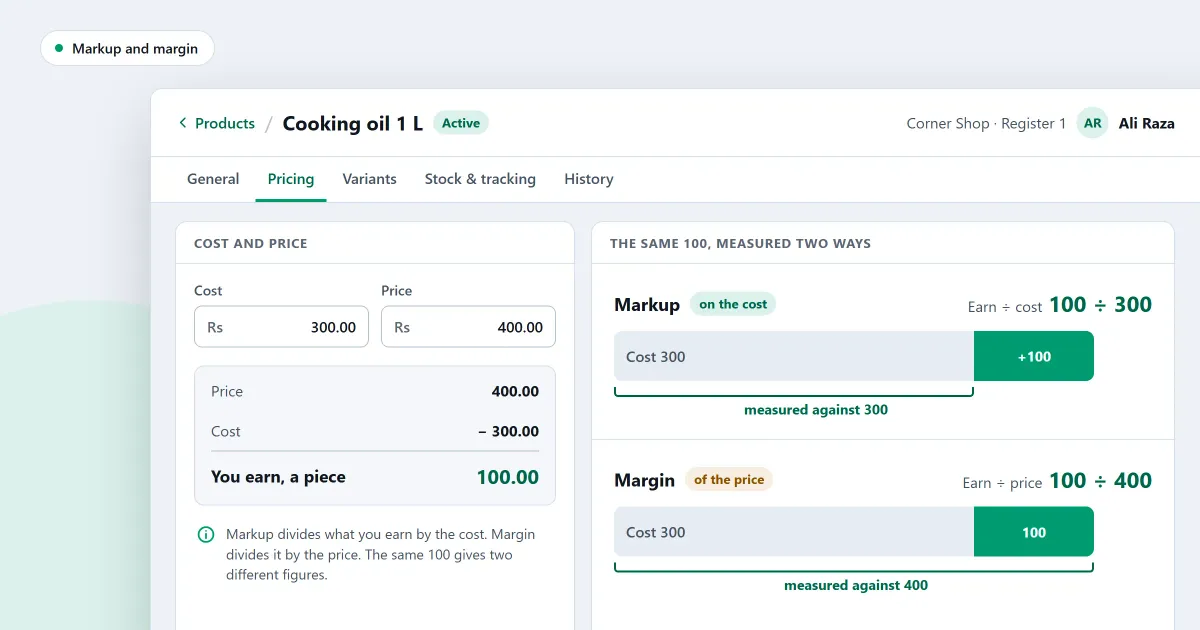
The difference between markup and margin matters when you set a price. Both come from the same two figures, the cost and the selling price, but they answer different questions. This page works one example through, shows the common mistake, and says where SellyPOS shows each figure.
What is markup?
Markup is how much you add to the cost of a product to reach its selling price. It is written as a percentage of the cost. If you buy at 80 and sell at 100, you added 20 to the cost, and 20 is 25 per cent of 80.
Work one bottle through it. One bottle of cooking oil costs the shop 80 and sells for 100. The markup is 20 divided by 80, which is 0.25, so 25 per cent. The example is round on purpose, so the sums are easy to check on paper.
What is margin?
Margin is the share of the selling price that you keep as profit, before your other costs. It is written as a percentage of the selling price. For the same bottle, the profit of 20 out of a selling price of 100 is a margin of 20 per cent.
Margin is the figure to look at when you ask how much of each sale stays in the shop. Markup is the figure to use when you start from a cost and want a price.
Which one should you use when you set a price?
Use markup to set a price from a cost. Take the cost, add the percentage you want, and you have the price. Use margin to judge a price. It shows how much of each sale you keep. Both are useful, but they are not interchangeable, so know which one a figure is.
For the same bottle, a markup of 25 per cent and a margin of 20 per cent are both true. Each one answers a different question.
What is the common mistake?
The common mistake is to add the margin you want to the cost as if it were a markup. A margin of 20 per cent on a cost of 80 does not give a price of 96. It gives a price of 100. A price of 96 gives a margin of only about 16.7 per cent.
Check the margin again after a cost changes. A supplier’s new cost moves the margin, even when your selling price stays the same. A cost of 85 against a price of 100 gives a profit of 15, so a margin of 15 per cent.
Where SellyPOS stands
SellyPOS sets a markup on a product, shows a maximum retail price as a ceiling, and reports the margin in its stock value figures. The product settings are in every edition. The reports are in Basic and Professional.
- A markup over cost. In a product’s pricing settings, set a markup over cost. You can also set a minimum selling price that a discount may not cross, a rule that stops its price being changed, or a flag that means it is never discounted. Lite, Basic and Professional.
- A maximum retail price. A product can have a maximum retail price (MRP). A selling price above it is refused, and a price equal to it is allowed. A product with no MRP has no limit. Lite, Basic and Professional.
- Stock value with cost, price and margin. For each category, the report shows the cost, the selling price, the profit if all of it sold, the margin and the share. Cost and profit are left out for people without permission to see them. Basic and Professional.
- Profit and loss for this month. Open the financial statements and they show the profit and loss for this month straight away. The statements cannot be exported or printed. Basic and Professional.
- No margin on the counter’s search results. Each search result shows the name, price, available stock and unit. Cost and margin are not shown there. Lite, Basic and Professional.
To learn how a shop tracks profit without guessing, read how to track profit in a shop. To set the markup and the minimum price, read how to set a markup, a minimum price or a no-discount flag. The profit and expense tracking page sets out the reports.
Next
Work out the markup and the margin for one product by hand, using the example above, before you change a price. Read how to see whether the shop made a profit. See the prices on the pricing page, and download SellyPOS.
Questions people ask
Can I change the prices of many products at once?
Yes. Choose the products, then use Change selected to set a price, or to raise or lower the chosen prices by a percentage or an amount. The result is rounded to 1, 5 or 10, or made to end in 9. A sale price that would go above the MRP is held at the MRP unless you choose otherwise. Review lists every old and new value before you save, and changes are saved together or not at all. A saved bulk edit can be undone for 24 hours. See bulk edit products.
How do I run a discount on some products for a week?
Give the promotion a name, a percentage or an amount off, and a start and end day. Then choose the products. The review shows a summary and any conflict, and you save the promotion as a draft or activate it. Activation is refused where a product already has a promotion on the same day. On those days the discount applies by itself when a cashier scans or adds one of the products, and it works offline. On each line, the larger of the promotion, a manual discount or a customer group discount is used, and a tie keeps the promotion. A promotion never takes a price below the product's minimum selling price. See discount promotions.
