Price list format for a shop, retail and wholesale
A price list format for a shop: a clear table with code, product, unit, retail and wholesale prices, when to reprint it, and how SellyPOS prints one.
Short answer A price list format for a shop is a plain table with one line per product: a code, the product, its unit, then the retail price and the wholesale price in separate columns. Keep the two price levels apart, and reprint the list whenever a price changes.
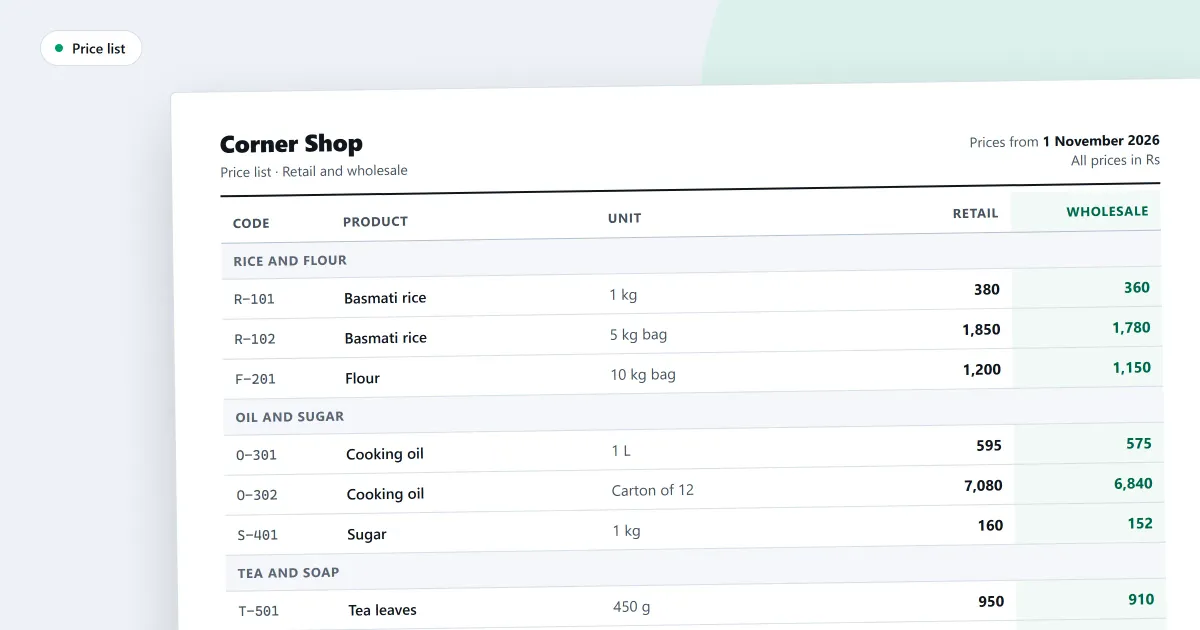
What is a good price list format for a shop? A good format is one that a customer can read at a glance and a cashier can check against the shelf. This page gives a simple table, the rule for keeping two price levels apart, and when to reprint. The last part says what SellyPOS does with price lists.
What is a price list format?
A price list format is the layout of a price list sheet: its columns, their order and what one line holds. For a shop, one line per product is the simplest choice. Each line gives a code, a product name, a unit and the price. Keep the layout the same each time you reprint it.
What columns should a shop price list have?
A shop price list needs five columns: a code, the product, its unit, the retail price and the wholesale price. The code finds the product quickly, and the unit tells the customer what the price buys. The two price columns stay apart, so each price can be read on its own.
| Code | Product | Unit | Retail | Wholesale |
|---|---|---|---|---|
| 1001 | Cooking oil, 1 litre | Bottle | 500 | 470 |
| 1002 | Rice, 5 kg | Bag | 1200 | 1140 |
| 1003 | Sugar, 1 kg | Packet | 150 | 140 |
Every figure in this table is invented for the example. Take the cooking oil. The retail column says 500 and the wholesale column says 470. Change the wholesale price to 480 and the retail price stays at 500. Only the wholesale column changes, and the list is reprinted with the new figure.
How do I check a price list before I print it?
Check each new price against the product on the shelf, and check that it sits in the right column. Read the unit beside it, so a price for one bottle is not read as a price for a bag. Look for any blank cell, and make sure no two products share a code.
- Compare the code with the shelf label.
- Read the product name and the unit together.
- Check that the retail price is in the retail column.
- Check that the wholesale price is in the wholesale column.
- Find any blank cell, then fill it or remove the line.
How do I keep retail and wholesale prices apart?
Keep retail and wholesale in two separate columns, or on two separate lists, and say on the list which one a reader is looking at. Mixing the two on one line makes a wrong price easy to read. Check each new price against the column it belongs in before the list is printed.
The common mistake is to print one price and let the reader guess which level it is. Each reader should be able to tell which price is theirs, without asking. A clear heading over each column does that.
When should I reprint a price list?
Reprint a price list when a price on it changes, when a product is added or taken off sale, or when the list is handed to a new customer group. Date the list, so the old copy is easy to set aside. Do not keep marking up an old printout by hand, because the next reader cannot tell which marks are current.
Where SellyPOS stands
The price lists are in Basic and Professional. Lite does not have them.
- A PDF price list. Choose whose prices and which products go on the list, check the preview, and create a two-column A4 PDF through the Save dialog. There is no Print button and no paper options on the list. Basic and Professional.
- A price list for each customer group. Each customer group has its own price list, with one line per product. It shows where each price comes from and the minimum price. Changing prices by a percentage, export, import, duplicate and validity dates are not built. Basic and Professional.
- Printed lists leave out cost and stock. A printed price list never shows cost, minimum price, MRP or stock. Basic and Professional.
- A saved setup. Save the choices for a price list as a setup, and open the saved setup again later. Basic and Professional.
To set each group’s prices, read how to set a price for each customer group. To make the list, read how to print a price list for customers. The wholesale and retail price list page and the prices for each group section cover the screens. For choosing a printer for paper copies, read thermal, inkjet or laser printer for a shop.
Next
Write your own price list on paper first, with the five columns above and ten lines. Then read how to set selling prices for your products for the selling side. See the pricing page for the editions, and download SellyPOS.
Questions people ask
Can I change the prices of many products at once?
Yes. Choose the products, then use Change selected to set a price, or to raise or lower the chosen prices by a percentage or an amount. The result is rounded to 1, 5 or 10, or made to end in 9. A sale price that would go above the MRP is held at the MRP unless you choose otherwise. Review lists every old and new value before you save, and changes are saved together or not at all. A saved bulk edit can be undone for 24 hours. See bulk edit products.
