How to open a supermarket or mart
How to open a supermarket or mart: the choices to make for dated stock, many suppliers and several tills, and where SellyPOS stands for each one.
Short answer To open a supermarket, plan the counters, the shelves, the suppliers, the dated goods and the people who may change stock before the first day. Count the opening stock, set a preferred supplier for each product, and decide how many tills you need. SellyPOS has a Supermarket business type and tracks expiry for any product.
How do you open a supermarket or mart without losing track of what is on the shelves? A supermarket carries far more products than a corner shop. They come from more suppliers, and many of them carry a date on the packet. The choices you make before the first day decide how much work every later day takes. This checklist covers those choices in the order most owners meet them. The last part shows where SellyPOS stands for each one, and which edition holds it.
What should a supermarket decide before it opens?
Before a supermarket opens, decide the counters, the shelf plan, the suppliers, the dated goods and who may change stock. Write each choice down before you buy any equipment. The number of counters and the list of goods that need dates change what you buy, so settle them first.
- Counters. Work out how many tills the first day needs, and where each one sits.
- Shelf plan. Group the products into sections, such as dry goods, dairy, frozen, household and personal care.
- Suppliers. List each supplier, what they bring, and which one you prefer for each product.
- Dated goods. Mark the products that carry an expiry date. Food is not the only one.
- People. Decide who may sell, who may receive a delivery, and who may change prices or stock.
- Opening stock. Count what is on the shelves before the first sale, so the first figures are right.
How do I start the stock figures on the first day?
To start the stock figures on the first day, count every product and record the number as its opening stock. Every later sale and delivery then moves that number from a known starting point. A shop that skips the count spends weeks finding out why its figures do not match the shelves.
Here is a worked example with invented figures. A delivery of 200 packets of biscuits arrives with one expiry date. In the first week, 35 packets are sold. The shelf count on the Sunday should show 165 packets. If it shows 160, five packets are unaccounted for, and you write down why before you order again.
| Step | Packets | Figure after the step |
|---|---|---|
| Delivery received | 200 | 200 in stock |
| Sold in the first week | 35 | 165 in stock |
| Shelf count on Sunday | 160 counted | 5 short |
How many tills and suppliers does a supermarket need?
A supermarket needs one preferred supplier for each product, so every order has a known place to go. It needs a second till only when customers wait at the counter at the same time. Check the busy hours on a normal week before you buy one, and write the figures down.
Busy hours are easy to miss on the first day, so do not guess. Look at the sales for each hour across a normal week, and see where the line grows. If the line is long for the same hour each day, a second counter helps that hour, and a second counter is only worth buying for that reason.
Where SellyPOS stands
- Business type at setup. Setup asks what kind of shop this is and offers a tile for each type. Choosing Supermarket sets sensible defaults for the shop, and the kind of shop also decides which fields a new product shows. Lite, Basic and Professional. The Supermarket variant options are created in Basic and Professional.
- Expiry for any product. Expiry is set per product, so food, cosmetics and household goods can each carry dates. An expiry date is entered for each line when goods are received. Basic and Professional.
- Earliest expiry first. A batch-tracked product offers the consignments with the earliest expiry first. An expired batch is refused or warned about, depending on the product’s policy. Basic and Professional.
- Reorder list by preferred supplier. Create orders uses each product’s preferred supplier, and the reorder list can be filtered by that supplier. Basic and Professional. See how to set reorder levels and make a reorder list and the stock control module.
- Stock counts by scanning. You count by scanning, review only the lines that differ, recount where needed, and apply the count. Sales made during a count are taken off once. Basic and Professional.
- Hourly sales. The report lists every hour from the first sale to the last, and names the busiest and quietest hour. Basic and Professional.
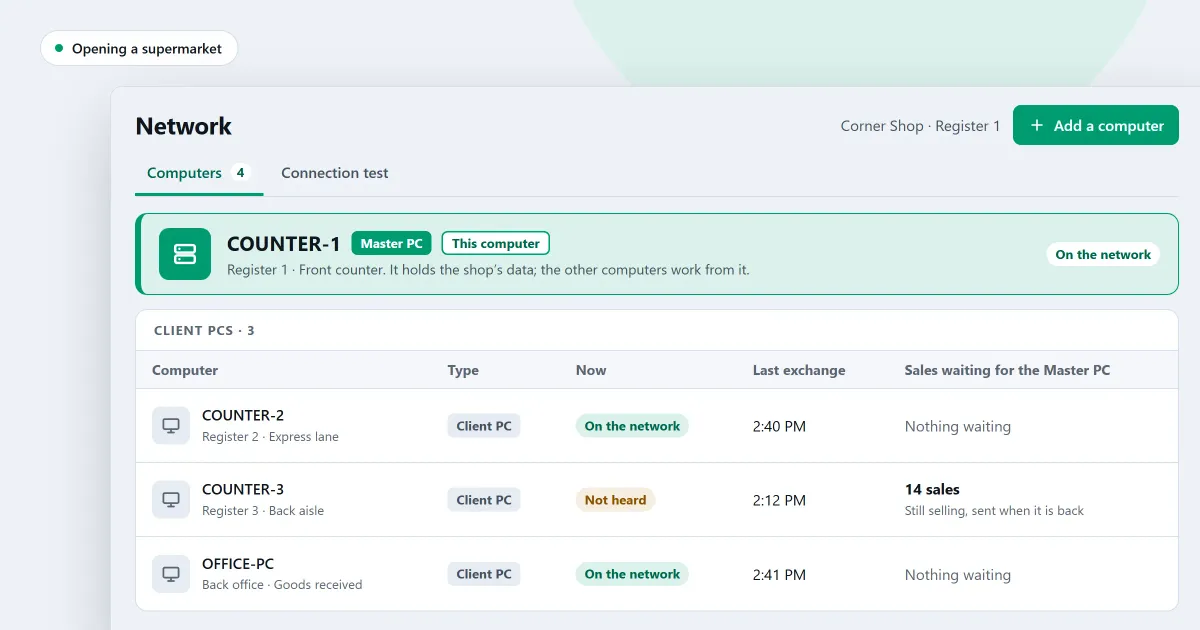
- A second till. Show a code on a till that already belongs to the shop, then type it on the till that wants to join. The code expires, and being on the same network is not enough. Professional only. See how to add a second till to your shop.
Lite holds up to 20 products, so a supermarket with more products needs Basic or Professional. For a checklist to take to any vendor, read which POS software is best for a supermarket. The supermarket POS software page lists each part with the edition that holds it.
Next
Read how to set reorder levels and make a reorder list before your first order. The purchases and suppliers module covers the supplier side, and the shop network and locations module covers more than one till. Compare the editions on the pricing page, or download SellyPOS.
Questions people ask
What does a supermarket need from its POS software?
A supermarket needs scanning at each counter, expiry dates and batches, stock counts and reorder lists, and staff roles with approval limits. A shop with several counters needs Professional, which joins the counters over the shop's own network. Barcode labels are also in Professional. See supermarket POS software.
Can I run more than one counter?
Yes, in Professional. Your counters connect over the shop's own network, with one computer as the main PC, so they keep working together without internet. Lite and Basic are for a single counter.
