How to open a grocery store: setup, stock and counter
A checklist for a grocery store: range, suppliers, loose and packed goods, shelf layout and the counter, and what SellyPOS does for each.
Short answer To open a grocery store, plan the range, choose your suppliers, decide how loose and packed goods are sold, and set up the counter before opening day. SellyPOS lets you choose your business type at setup, and it sells weighed products and pack levels, and it keeps reorder levels and credit limits for you.
If you are learning how to open a grocery store, start with the range and the suppliers, not the till. The checklist below takes you from the first shelf to the first sale. Each step is plain common sense. The last part says which of these SellyPOS covers, and in which edition.
What range should a grocery store start with?
A grocery store should start with the goods its neighbours buy every week, in the sizes they buy them. Keep a short list of what sells quickly, and add slowly. Give loose goods such as rice and beans their own line, so the counter can handle them.
Write the range down as a list of products, with the unit each one is sold in. A list on paper is enough for the first week. Check it against what customers ask for at the counter, and drop the lines nobody asks for.
How do I handle loose goods and packed goods at the counter?
Sell loose goods by weight, and sell packed goods by the pack. Price each by the unit you sell it in, and check the price before you open the till. A loose item and its packed version should be two products, so their stock and sales stay apart.
A worked example with invented figures: a customer buys 1.5 kg of loose rice from a shop that holds 20 kg. After the sale the shop should hold 18.5 kg.
Pack sizes work the same way. The table counts one product sold as a piece, a box and a carton.
| Level | Pieces in each | Packs on the shelf | Pieces on the shelf |
|---|---|---|---|
| Piece | 1 | 10 | 10 |
| Box | 6 | 4 | 24 |
| Carton | 24 | 2 | 48 |
Each row is another way to count the same product, so do not add the rows together.
How do I set reorder levels for each product?
A reorder level is the stock count at which you should order the product again. Set it for each product from what you sell between orders and how long the supplier takes to send the goods. Check the level after each order arrives, and change it when sales change.
Here is a worked example with invented figures. A product sells 10 packets a week, and the supplier takes 2 weeks to send the goods. The reorder level is 20 packets, so the next order goes in when 20 packets remain. If the supplier is often late, set the level higher.
How do I give credit to regular customers?
Give a regular customer a credit limit, the most they may owe at one time, and a credit period in days. Zero means no credit. In SellyPOS a limit can be set for each customer, and only people with permission can make it unlimited.
Before opening day, work through these four steps:
- Set up the range. Enter each product with its unit, so loose and packed goods are kept apart.
- Set a reorder level. Fill it in for every product that sells every week.
- Set credit limits. Only for regular customers who have agreed the terms with you.
- Test the counter. Sell one loose item and one packed item before the first customer arrives.
Where SellyPOS stands
Five grocery features are in SellyPOS. Each one names its edition.
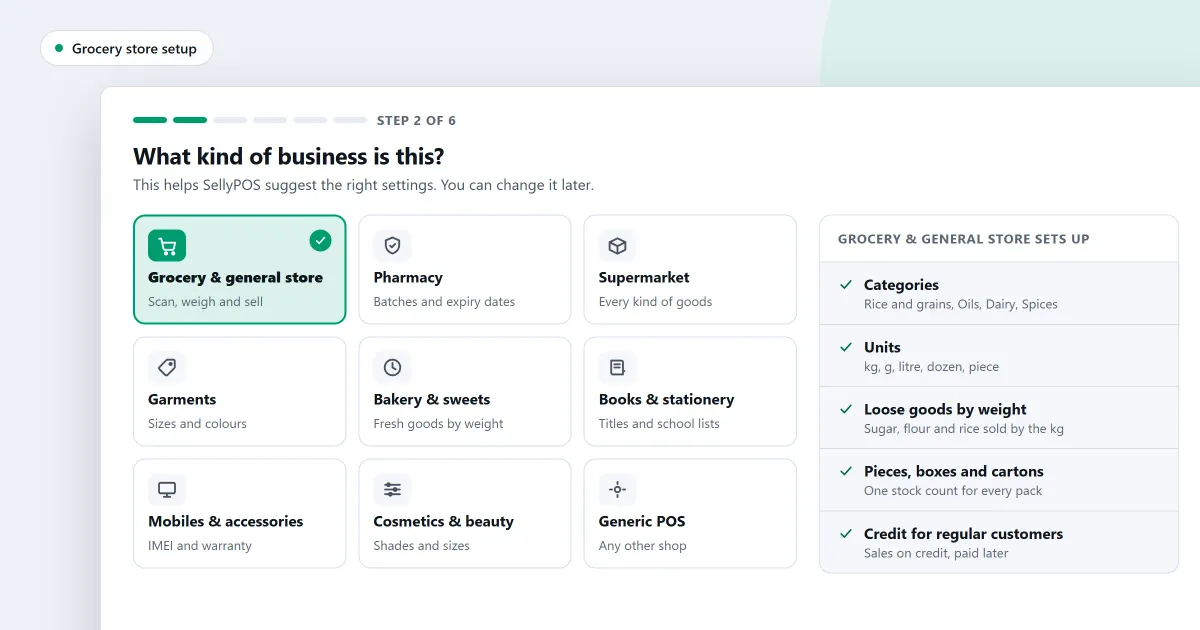
- Choose your business type at setup. The setup wizard asks what kind of shop this is and offers a tile for each type. Choosing one sets sensible defaults for the shop, and skipping leaves the settings as they are. A business type does not set the expiry printed on labels. Lite, Basic and Professional.
- Weighed products on the cart line. A product sold by weight opens a box on its cart line, with the weight and the money side by side. Typing either one fills in the other, and scanning it again adds to that line. Reading the weight from a connected scale is not built. Lite, Basic and Professional.
- Pieces, boxes and cartons. One product can be sold as a piece, a box or a carton, each with its own barcode, price and cost. At the counter each pack is its own search result. Mixed packs of different products are not supported. Lite, Basic and Professional.
- Reorder levels on the product. The product form has a fourth tab where you set the minimum stock, reorder point, reorder quantity and preferred supplier for each location. Basic and Professional.
- Credit limits and credit periods. Each customer has a credit limit and a credit period in days. A blank limit means unlimited, and only people with permission can set that. Basic and Professional.
The grocery store software page covers the counter side, and the stock control and customers and credit modules set out the rest. For the reorder steps in more detail, read how to work out a reorder level for each product. To check a grocery program before you buy, read what to check in grocery store software.
Next
Read how to sell loose items by weight and how to set up your shop for the first time. Compare the editions on the pricing page, then download SellyPOS.
Questions people ask
What does a grocery store need from its POS software?
A grocery store needs a counter that adds scanned items at once, and lets the cashier sell loose goods by typing the weight. It needs expiry dates on food and other goods, credit for named customers, and bills and payments for its suppliers. Basic is for one counter. Professional adds several counters on one shop network. See grocery store POS software.
