How to choose a barcode label printer for a shop
What to check in a barcode label printer: label width, direct thermal or transfer, the cost per label and a test print, and what SellyPOS prints.
Short answer A barcode label printer is a printer that prints on label stock, so each product can carry a barcode and a price. Choose it by the label size, the printing method, and the cost of each label. SellyPOS prints barcode labels from ready formats in Professional.
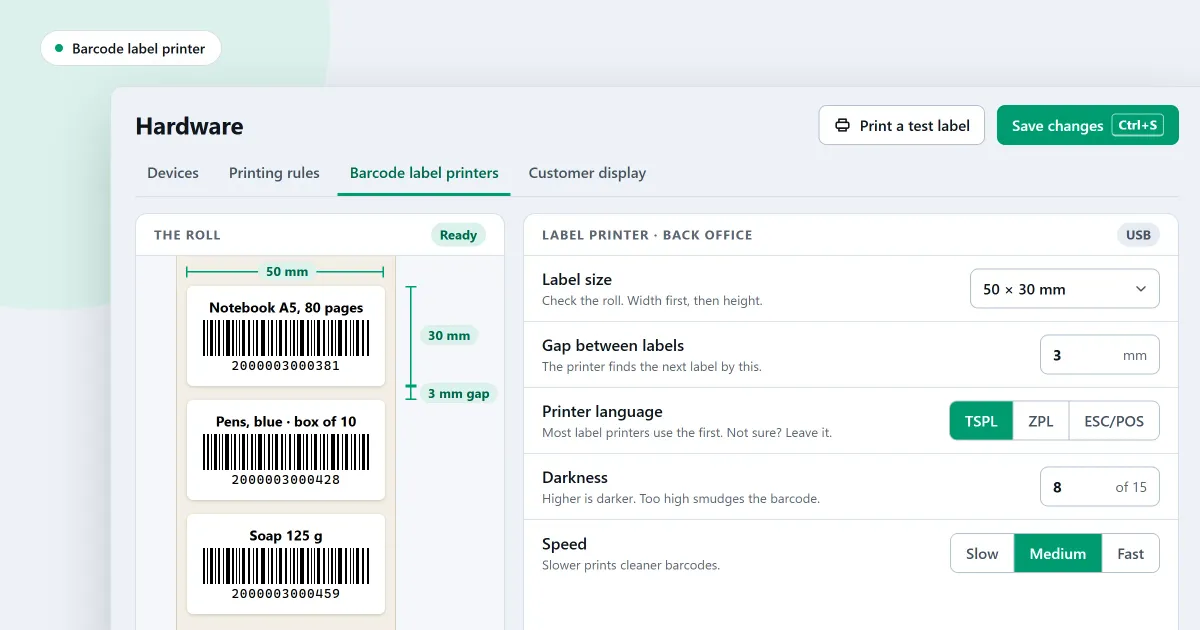
Before you buy a barcode label printer for a shop, check five things: the label size, the printing method, the cost per label, a test print, and what the label software can print. The wrong choice wastes rolls and counter time. This page takes them in that order, and the last part says what SellyPOS prints and in which edition.
What is a barcode label printer?
A barcode label printer is a printer that prints on label stock, so each product can carry a barcode and a price. Choose it by the label size, the printing method, and the cost of each label. SellyPOS prints barcode labels from ready formats in Professional.
Start with the label size. Measure the labels you already use, or the space on the product where a label must sit, and buy a roll that fits that space. A printer that cannot load the width you need is no use to the shop, whatever else it offers.
What is the difference between direct thermal and transfer printing?
Direct thermal and thermal transfer are the two printing methods for label printers. Direct thermal uses heat on special paper and needs no ribbon, but the print can fade with heat and light. Thermal transfer uses a ribbon, and the print lasts longer. Choose by how long the labels must last on the shelf.
| Method | What it needs | How long the print lasts |
|---|---|---|
| Direct thermal | Heat-sensitive label stock, no ribbon | Fades with heat and light |
| Thermal transfer | Label stock and a ribbon | Lasts longer |
A shop whose goods stay on the shelf for months should lean to the ribbon method. A shop whose labels are used within days can use direct thermal, if the rolls are kept away from heat and light.
How do I test a label printer before I buy it?
Test a label printer by printing a run of your own labels, with the barcode you will use, and scanning each one with the scanner you will use at the counter. A test print shows whether the bars are sharp enough to scan, whether the text fits, and whether the roll feeds evenly.
- Ask for a test run. Ask the seller to print one page of your own label design on the roll they would sell you.
- Scan every label. Use your own scanner, not the seller’s, and scan each label from the top and from the bottom.
- Read the text at true size. Hold a label up and read the name and the price without a magnifier.
- Count the labels that fail. A label that will not scan is a fault in the print or the paper, so write down how many fail.
What does a label roll really cost?
A roll costs what the label stock costs, so compare rolls by the cost of one label. Divide the price of a roll by the number of labels on it. The roll with the lower cost per label is cheaper to run, even when its price is higher.
Here is a worked example with invented figures. Roll A costs 30 and holds 500 labels. Roll B costs 24 and holds 300 labels.
| Roll | Cost of the roll | Labels on the roll | Cost per label |
|---|---|---|---|
| Roll A | 30 | 500 | 0.06 |
| Roll B | 24 | 300 | 0.08 |
Roll B costs less as a roll, but each of its labels costs more. Use the labels you will print, the roll you will buy and the cost you are quoted, and work out the figure before you buy.
Where SellyPOS stands
SellyPOS prints barcode labels from ready formats. Every feature below is in Professional only, because barcode labels are a Professional feature.
- Ready formats, not a design tool. Pick a paper and one of the ready formats, tick what shows on the label, and check the real label at true size before you print it to a label printer or to A4. Labels cannot be drawn by hand: no dragging, layers or rotating. Professional only.
- Bulk printing from a product list. Pick products from a list, or from a filtered list, and print their labels in one run. Each label carries the name, the barcode with its digits and the price. Printing labels from a price-change batch is not built yet. Professional only.
- A label for each pack level. The label page has a level picker, and the label prints the barcode and price of the level you choose. Professional only.
- Full name or main product name. Each barcode design chooses whether a variant’s label prints its full name or only the main product’s name. The full name is the default. Professional only.
- Shelf labels for promotions. A promotion label shows the regular price struck out, the promotion price, the percentage off and the end date, with the product’s normal barcode. Printing this label on the label printer is still owed, so check a printed one before you rely on it. Professional only.
The barcodes and labels section of the products module sets out these settings, and the hardware module page covers the printers and scanner. For the print steps, read how to print barcode labels.
Next
Read how to print barcode labels for your products. If the shop also needs a receipt printer, read how to choose a receipt printer for a small shop. Compare the editions on the pricing page, then download SellyPOS.
