What is dead stock and how do you find it?
Dead stock is goods that have stopped selling. Learn what it is, why it ties up your money, how to spot slow products and what to do with them.
Short answer Dead stock is stock that has not sold for a long time and is not likely to sell at its normal price. It ties up money on your shelves. You can find it by reading the movement of each product, then choose to mark it down, bundle it, return it or write it off.
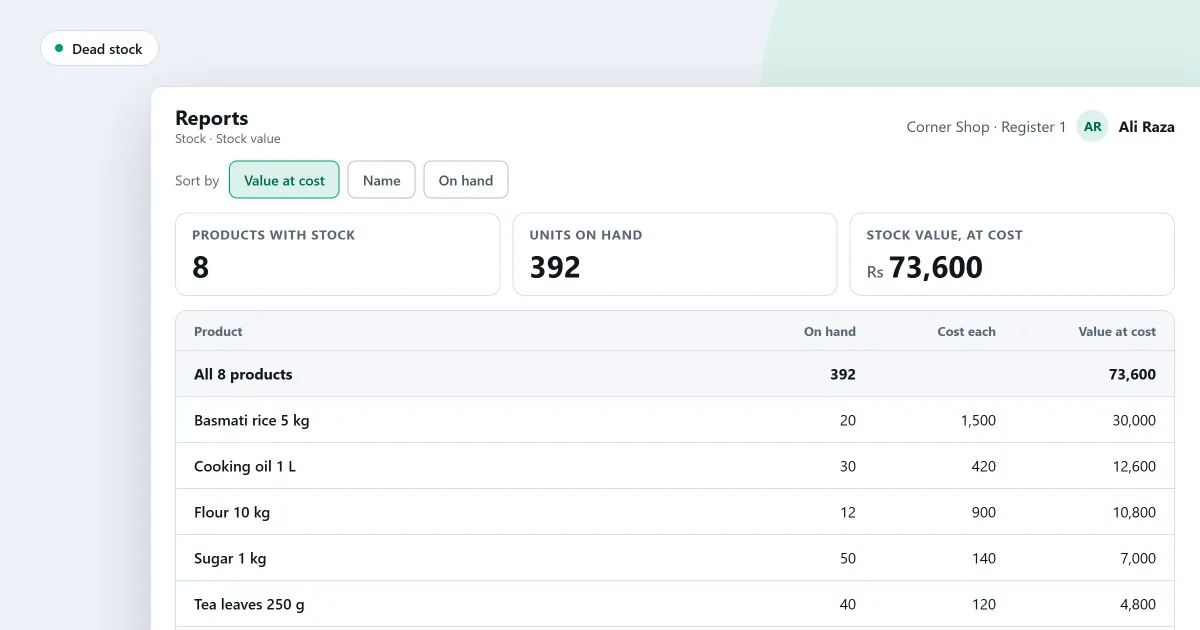
Dead stock is the goods on your shelves that no longer sell, and it ties up money without showing on any sale. What is dead stock, and how do you find it in your own shop? This page explains the idea in plain words, shows a simple way to spot it, and sets out what you can do with it.
What is dead stock?
Dead stock is goods that have stopped selling in the normal way. They stay on the shelf or in the store room, and the money you paid for them stays there too. A product can go dead because customers stopped asking for it, the style changed, or you bought more than you could sell in a sensible time.
The cost is more than shelf space. The money tied up in dead goods cannot pay for stock that does sell. A product that sits for months can also point to an earlier mistake, such as buying too large a quantity or ordering the wrong item. Checking for dead stock once a season keeps the figures honest.
How do you find dead stock?
Find dead stock by reading how much of each product moved over a set period, not by guessing. Choose a period, such as the last three months. List the products that sold little or nothing in it, and compare each one with the stock you hold. The ones with many units and few sales need a closer look.
Follow these steps in order.
- Count the shelf first. A stock count gives you the figure on the shelf, so the comparison starts from a true number.
- Choose one period for every product. The same period lets you compare products fairly.
- List the slow products. For each one, note the stock on hand and the units sold in the period.
- Look at the history of the slow ones. Check when the goods arrived, whether the price has changed, and whether the packet or the date has changed.
For example, a shop holds 40 packets of one snack. In three months it sold 2 packets. That leaves 38 packets that did not sell. The owner marks the snack for review and checks whether it still sells at its normal price.
What can you do with dead stock?
With dead stock, you can mark it down, bundle it with a product that sells, return it to the supplier, or write it off. Each choice gives you back a different amount of money and costs a different amount of margin. Choose by the condition of the goods, and by what keeping them longer would cost you.
| Option | Use it when | What it costs you |
|---|---|---|
| Mark it down | The goods still sell, at a lower price. | Some margin on each sale. |
| Bundle it | A product that sells well can carry it. | Some margin on both products. |
| Return it | The supplier agrees to take the goods back. | Depends on what the supplier agrees. |
| Write it off | The goods cannot be sold at all. | The full cost of the goods. |
Write off only what cannot be sold, and record the write-off, so that the count and the books agree.
Where SellyPOS stands
The SellyPOS reports show one product’s movement and the value of stock, and you decide what to do with the results. A slow-moving report is not built. Each item below names the edition that holds it.
- Stock movement for one product (Basic and Professional). It lists one product’s movements, newest first. A strip over every line adds up: opening, plus received, less sold, plus returned, less adjusted, equals what is on hand. Document numbers, the person who made each movement and its note are not built.
- Stock value by category (Basic and Professional). For each category it shows the cost, the selling price, the profit if all of it sold, the margin and the share. Stock value at a past date is not built. People without permission to see cost and profit do not see those figures.
- Stock losses by category and place (Basic and Professional). It shows where stock keeps going missing, by category, location, month and counter, from the counts you have already done. There is no export, print or drill-through on the Reports screen.
- Adjust stock with a reason (Lite, Basic and Professional). Each adjustment needs a reason and is saved as one numbered document with several lines. Use it to take written-off goods out of the count.
- Discount promotions at the counter (Professional only). Set a percentage or a fixed amount off chosen products, from one business day to another. The promotion applies when a cashier scans or adds one of those products, and it works offline. Bundles, tiers and buy X get Y promotions are not built.
For the whole stock side, read the inventory software page and the stock control module. The discount promotions page explains the counter side of a price cut.
Next
Count your stock before you read the figures, using how to count stock in your shop. Read how to reduce stock losses in a shop next, and see how to adjust stock and record why. Check the prices on the pricing page, then download SellyPOS.
