What is a goods received note, and why does it matter?
A goods received note records what arrived from a supplier. Learn what to write on it, why it matters, and how SellyPOS keeps the record.
Short answer A goods received note is the record you make when goods arrive from a supplier. It says what came, how many, and whether anything was short or damaged. It matters because it is the point where the delivery, the order and the bill are checked against each other. In SellyPOS this record is called a goods receipt.
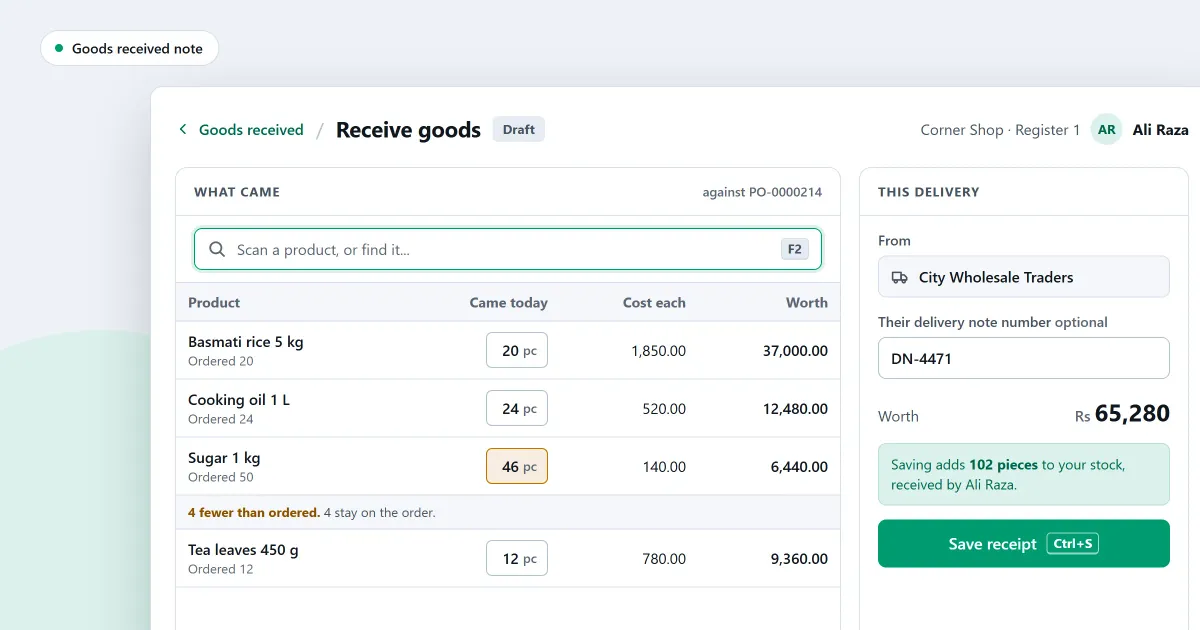
What is a goods received note, and is it worth the time? Any shop that takes deliveries needs a way to check them. This page explains the note in plain words, what to write on it, and what to do when a delivery is short or damaged. The last part covers what SellyPOS records.
What is a goods received note?
A goods received note, often shortened to GRN, is the record of what physically arrived from a supplier on one day. The person who receives the goods writes it at the time of delivery. It lists each product and the count that arrived, and it notes any change in condition.
It is the first check on a delivery. It is written before anyone looks at the bill.
Why does a goods received note matter?
It matters because a supplier’s bill is only as good as the delivery it covers. If the bill covers 24 items and only 20 arrive, the note is your proof. It also tells you what to add to the shelf count.
Without a note, a short delivery is easy to miss. The bill may be paid in full for goods that never reached the shelf, and nobody notices until the count is wrong.
What should a goods received note say?
Write the supplier, the date, the delivery reference if there is one, and each product with the number that arrived. Put the number ordered beside it, so a short line stands out. Note any damaged or wrong item on the same paper, and sign it.
- The supplier’s name and the date.
- Each product, with its code or name.
- The quantity ordered, and the quantity that arrived.
- Any damaged or wrong item, with a short reason.
- Who received the goods, with their signature or initials.
Here is a round-number case. A shop orders 24 bottles of cooking oil. The van brings 20 bottles, and 2 of those are broken. The note should show 4 short, because 24 minus 20 is 4. It should also show 2 damaged, leaving 18 good bottles for the shelf. The shelf rises by 18, not 20.
What do you do with a short delivery?
Record the number that arrived, and leave the rest of the order open. Tell the supplier, and ask whether the missing goods will come. If they will not come, close the order short, with a reason. A short delivery is not a finished order, so do not treat it as one.
The shelf count should match what came in, not what was ordered. If you add the full order to the shelf, the count will be wrong for every product on that line.
What if the goods arrive damaged?
Count the damaged items apart from the good ones, and write a short reason on the note. Do not put damaged goods on the shelf as good stock. Tell the supplier before the driver leaves, if you can, and keep the damaged items apart until the supplier has seen them.
Where SellyPOS stands
SellyPOS records a delivery as a goods receipt, against a purchase order or with no order. Goods receipts are in Lite, Basic and Professional. Two limits matter here. A goods receipt cannot be printed, and damaged or rejected quantities are not recorded on it. Write those on your paper note and tell the supplier.
- Record a delivery against an order, or without one. A short delivery leaves the rest of the order to come. A delivery over the ordered amount is accepted up to a set tolerance and refused beyond it. Lite, Basic and Professional. Serial-tracked products take their devices one unit at a time in Basic and Professional only.
- Choose the new cost. When a line costs something different from the product’s cost on file, the screen asks once for that line whether to use the new cost from now on. Cost figures show only to people allowed to see product costs. Lite, Basic and Professional.
- Close an order short, with a reason. Once part of an order has arrived, close the rest with a reason. An order that was sent but has nothing received can be cancelled. Lite, Basic and Professional.
- A list of deliveries waiting for their bill. Deliveries with no bill yet are listed under Waiting for their bill, and the goods received page shows how many are waiting. Lite, Basic and Professional.
- Void a receipt entered in error. It is voided with a reason, and its stock is reversed in full. A receipt is refused if a bill already names it or its stock has moved on. Lite, Basic and Professional.
For the buying side, read what a purchase order is, how to receive goods against an order and how to record a supplier bill and pay it. The purchases and suppliers module sets out the rest.
Next
Write the note for your next delivery before you sign for it. The supplier and purchase order software page shows the buying side in one place. See the prices on the pricing page, and download SellyPOS.
Questions people ask
Can I edit a sale after it is finished?
A finished sale is never edited in place, but it can be corrected. A manager or owner chooses Correct this sale, which reopens it in the cart, and finishing replaces the original with the corrected sale. You can also make a return or an exchange against it. Either way the records show what happened and when.
How do I set SellyPOS up for my kind of shop?
At setup, choose your kind of shop from the tiles. The choice sets sensible defaults for the shop and decides which fields a new product shows. Choose your country from a list you can type to filter, and the currency, formats and time zone are filled in for you. You can change the business type later in Settings. To confirm, you type the word CHANGE, and the screen names what the new type changed. Settings you changed yourself are left alone. See POS software for your kind of shop.
