What is a purchase order and when should you use one?
A purchase order is the numbered request you send a supplier before goods arrive. Learn what to put on it and when a small shop can skip it.
Short answer A purchase order is a numbered request you send a supplier for goods, before they arrive. It lists what you want, how many and the agreed details. It is not a bill, and it does not change your stock. SellyPOS can save it as a PDF and record the delivery against it.
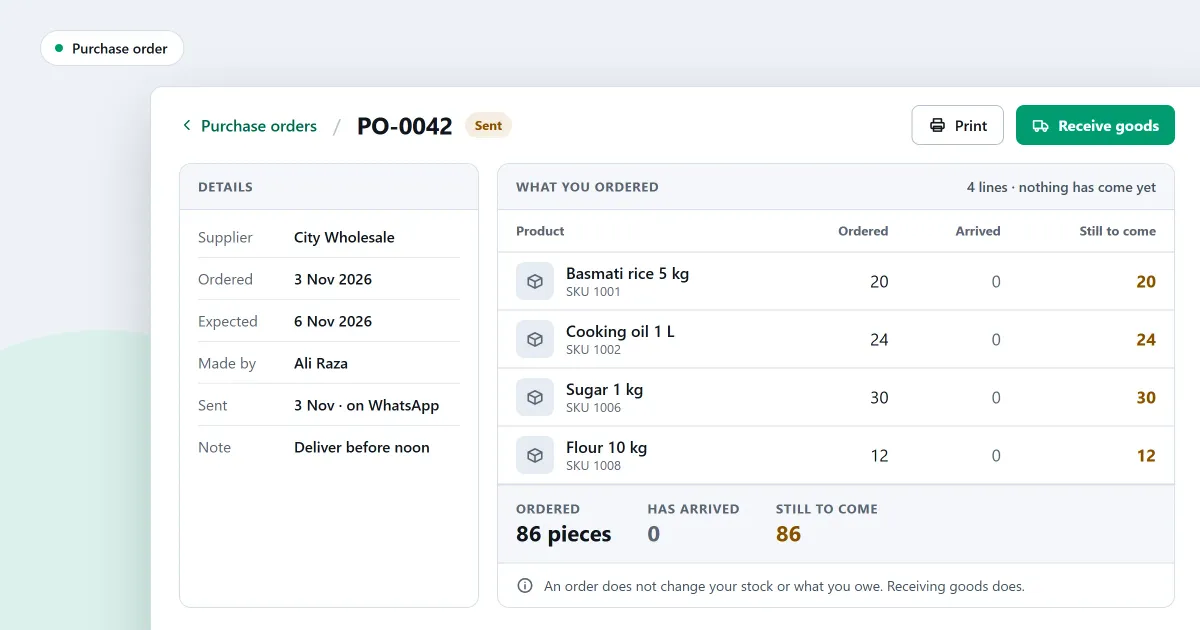
What is a purchase order, and do you need one for every delivery? A shop that buys from a supplier often has to say what it wants before the goods leave. This page explains the three papers in buying, when a small shop can skip the order, and what a good order says.
What is a purchase order?
A purchase order is a numbered request for goods, sent to a supplier before the goods arrive. It names the supplier, the products, the quantities and the agreed price, and it can set a date for delivery. A purchase order asks for goods. It becomes a delivery only when the goods arrive.
The order is kept as a record of what you asked for. That matters later, when the delivery and the bill come in and you need to check them against it.
What is the difference between an order, a delivery and a bill?
Three papers come with one purchase. The order says what you asked for. The delivery record says what arrived. The supplier bill says what the supplier charges you. The three can differ, so a shop checks each one against the others before it pays.
| Paper | What it says | When it comes |
|---|---|---|
| Purchase order | What you asked for | Before the goods arrive |
| Delivery record | What arrived | When the goods arrive |
| Supplier bill | What the supplier charges | After the delivery, often later |
When the three agree, paying is simple. When they do not, you have a question to ask the supplier before you pay.
When can a small shop skip the purchase order?
A small shop can skip the order when it buys the same goods from one nearby supplier, collects them the same day and pays on the spot. The order helps more when you buy from a distance, buy many items at once, or need a record of what you asked for.
A purchase order is worth the time when:
- the supplier is far away, or the goods take days to arrive;
- you buy many products on one visit;
- the supplier must agree a price or a quantity first;
- you want to check later what was asked for against what came.
What should a good purchase order say?
A good order is one the supplier cannot misread. Give the supplier’s name, the date, an order number, each product as the supplier knows it, the quantity, the agreed price for each unit and the date you expect the goods. Keep a copy with your records.
- The supplier’s name and phone number.
- The order number and the date.
- Each product, with its code or name as the supplier uses it.
- The quantity, with its unit, such as a box, a carton or a kilo.
- The agreed price for each unit.
- The date you expect the goods.
Where SellyPOS stands
SellyPOS makes a purchase order for each supplier, and records the delivery against it. Purchase orders, PDFs and deliveries are in Lite, Basic and Professional. The supplier and purchase order software page sets out the buying side.
- Make a numbered purchase order. It can be edited while it is a draft, and it changes neither stock nor the supplier balance. An order cannot be duplicated or emailed. Lite, Basic and Professional.
- Save the order as a PDF, and share it. The order is saved as an A4 PDF. Sharing saves the PDF and opens WhatsApp to the supplier’s number, and the person sends it. Lite, Basic and Professional.
- Record a delivery against an order, or without one. A short delivery leaves the rest of the order to come. A delivery over the ordered amount is accepted up to a set tolerance and refused beyond it. Lite, Basic and Professional.
- Enter the bill against the deliveries. The bill never adds stock a second time. A price that differs from the delivery’s goes to a price variance, and the product’s cost is not restated. Lite, Basic and Professional.
- One save for the delivery, the bill and the payment. On one screen, the delivery, the supplier’s bill and any amount paid now are saved together. Lite, Basic and Professional.
For the next step, read what a goods received note is and why it matters, and how to create a purchase order. The purchases and suppliers module covers the rest of buying.
Next
Write one order for your most-used supplier this week, and keep a copy. Read how to receive goods against an order for the delivery side. See the prices on the pricing page, and download SellyPOS.
Questions people ask
Is SellyPOS Lite really free?
Yes, for ever: no trial, no licence and no lock. Lite holds up to 20 products, shows the last 7 days of sales history and returns, and has no backup, restore, import or export. When you need more, install Basic or Professional over the same data.
How do I set SellyPOS up for my kind of shop?
At setup, choose your kind of shop from the tiles. The choice sets sensible defaults for the shop and decides which fields a new product shows. Choose your country from a list you can type to filter, and the currency, formats and time zone are filled in for you. You can change the business type later in Settings. To confirm, you type the word CHANGE, and the screen names what the new type changed. Settings you changed yourself are left alone. See POS software for your kind of shop.
