Stock take sheet template: a free printable sheet
A stock take sheet template to print: the columns, a filled example with invented goods, how to work out each difference, and how SellyPOS counts stock.
Short answer A stock take sheet template is a printed table with one row for each product, the quantity counted on the shelf, the quantity your records show and the difference. This page gives a sheet you can copy, shows how to fill it, and says how SellyPOS counts stock.
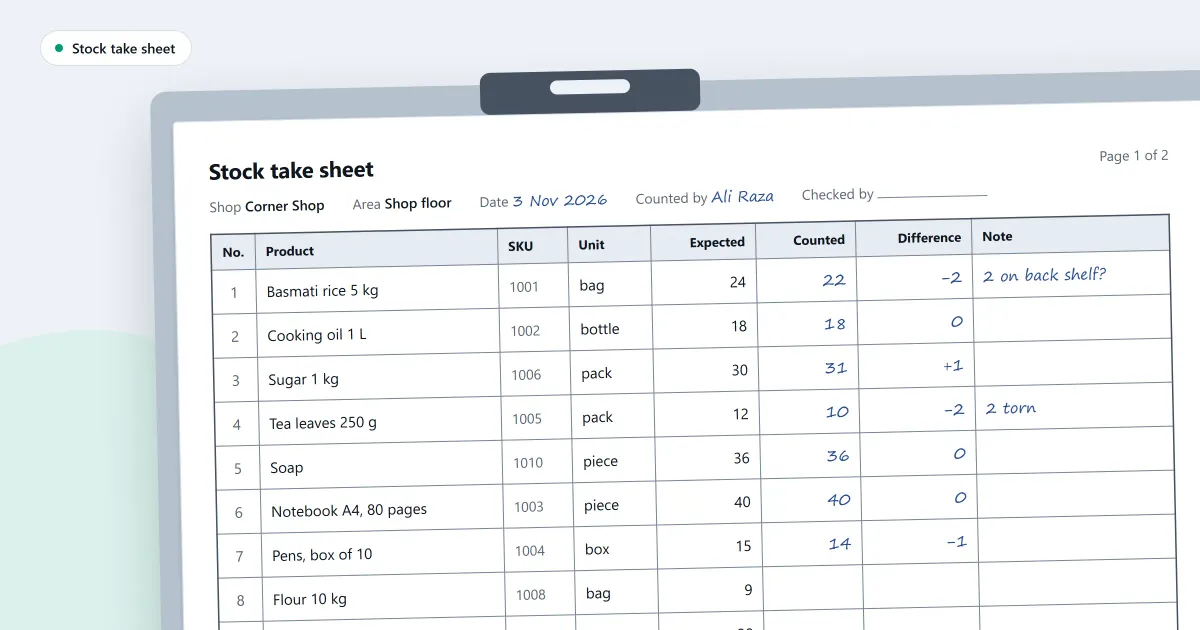
You count the shelves to find out what the shop really holds. A stock take sheet template gives the count a fixed order, so every product is counted the same way and every difference is written down. The sheet below is plain enough to copy into a notebook or a word processor. After it you will find a worked example with invented goods, and the steps for working out each difference.
What should a stock take sheet have on it?
A stock take sheet should have one row for each product, with its name and code, the quantity counted on the shelf, the quantity your records show, the difference and a reason. Add the date and the initials of the person who counted, so the figures can be checked later.
Blank sheet, to copy:
| Product | Code | Shelf count | Records show | Difference | Reason |
|---|---|---|---|---|---|
A filled sheet, with invented goods. The difference is the shelf count minus the records figure.
| Product | Code | Shelf count | Records show | Difference | Reason |
|---|---|---|---|---|---|
| Cooking oil, 1 litre | OIL-1 | 12 | 14 | -2 | Two bottles broken at the back |
| Rice, 5 kg bag | RICE-5 | 9 | 8 | +1 | Found in the back room |
| Biscuit packet | BIS-01 | 30 | 30 | 0 | None needed |
| Tea, 250 g pack | TEA-25 | 6 | 10 | -4 | Unexplained, recount |
How do you fill in a stock take sheet?
Count each product first, and write the shelf count before you read the records. Then copy the records figure, subtract it from the count, and write the result as the difference. Recount any line that differs before you write a reason for it.
- Count one product at a time. Count the shelf and the back room together, and write the number in the shelf count column.
- Then read the records. Copy the records figure only after the count is written down.
- Subtract. The difference is the shelf count minus the records figure. A minus sign means the shop holds less than the records say.
- Recount any line that differs. If the second count is different again, write both numbers and leave the reason empty.
- Write a reason you can explain. A broken item or a sale that was not recorded is a reason. A guess is not.
For example, the records show 14 bottles of cooking oil, and the shelf holds 12. The difference is 12 minus 14, which is minus 2. You check the back room, find two bottles broken, and write that down as the reason.
How do you reconcile a stock take?
To reconcile a stock take, look at each difference, decide its likely cause, and then correct the records with that reason. A difference you cannot explain after a recount stays on the sheet, marked for the owner, and is not hidden by changing the count.
| Difference | What it can mean | What to do |
|---|---|---|
| Minus | Goods broken, lost, taken or sold without a record | Recount, then write the cause |
| Plus | Goods put back on the shelf, or a receipt not yet recorded | Check the back room and the day’s records |
| Zero | The shelf matches the records | Nothing more to do on this line |
Can SellyPOS count stock for you?
Yes. SellyPOS counts stock by scanning barcodes, or on paper through a spreadsheet that you import back. It shows only the lines that differ, lets you recount them, and applies the count. Once applied, a count is read-only. Stock counts are in Basic and Professional, not in Lite.
Where SellyPOS stands
- Count by scanning, then apply the difference. Count products by scanning them, then review only the lines that differ, recount them if needed and apply the count. Once a count is applied, it is read-only. Counting only a chosen product, or by section, and showing who counted, have no screen yet. Basic and Professional.
- Scan barcodes to count. Scan a product’s barcode, enter the quantity, and the next scan follows. The mouse is never needed to count. Counting on two terminals at once is not built. Basic and Professional.
- Count on paper, then import the sheet. Export the count to a spreadsheet, count on paper, then import the filled sheet. Importing the same file twice is one import, so the count is not doubled. Basic and Professional.
- Blind counting. Blind counting is the default, so the expected quantity is not shown while counting. A flagged line can be counted again, and the second reading is added to the first. Basic and Professional.
- Count the whole shop or one group. Choose to count the whole shop, one category, one brand or one supplier. Basic and Professional.
The counting steps are in how to count your stock and apply the difference. A reason for each change is covered in how to adjust stock and record why. The stock tools are on the stock control module page.
Next
Read how to count stock in your shop, step by step before your next count. Compare the editions on the pricing page. Basic and Professional each start with a 7-day trial, and you can download SellyPOS to try them.
