How to open a bakery or sweet shop
How to open a bakery or sweet shop: plan goods sold by the piece and by weight, daily stock, the busy hour at the counter, and see where SellyPOS stands.
Short answer To open a bakery or sweet shop, plan what you sell, how each item is priced, how much you start with each day, and how the busy hour at the counter is served. SellyPOS sells by weight and by piece, holds a sale while the next customer is served, and tracks expiry for any product.
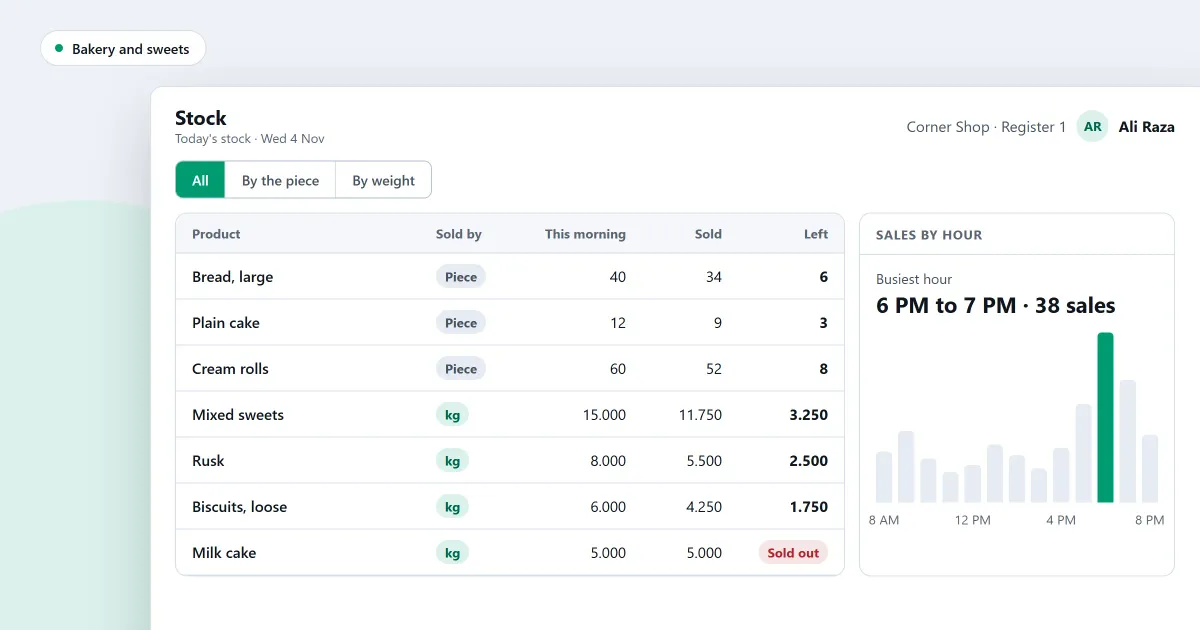
How do you open a bakery or sweet shop that serves a queue all day? A bakery sells goods by the piece and by the weight, and many of them spoil within days. The stock changes every day, and the counter is busiest at set hours. This checklist covers the choices to make before the first day. The last part shows where SellyPOS stands for each one, and which edition holds it.
What should a bakery plan before it opens?
Before a bakery opens, plan the goods, how each one is sold, the daily stock, the shelf life and the counter at the busiest hour. Each choice affects the others. A sweet shop that sells by the weight needs a different counter from one that sells boxes of pieces, so decide how each item is priced before buying equipment.
- Goods. List what you sell, and mark each item as sold by the piece, by the weight or in a box.
- Shelf life. Note how long each item stays good. Items that spoil quickly need a dated stock line.
- Daily stock. Decide how many of each item you start with, and how many you write off at closing.
- The counter. Decide what a customer usually buys together, and how many tills the busiest hour needs.
- Payments. Find out which amounts the counter takes most, so the cashier can tender in one press.
- Changed minds and waits. Decide what happens when a customer changes an order or a sale must wait.
How do I plan the daily stock for a bakery?
Plan the daily stock from the sales you expect, and write down what is left at closing. The leftover count is the most useful figure you have. Look at it each evening, and adjust the next day’s start. A week of these counts shows the pattern better than any guess.
Here is a worked example with invented figures. A sweet shop starts Monday with 40 pieces of one sweet, sells 37, and has 3 left at closing. On Tuesday it starts with 40 again, sells 30, and has 10 left.
| Day | Start | Sold | Left at closing | Check |
|---|---|---|---|---|
| Monday | 40 | 37 | 3 | 37 + 3 = 40 |
| Tuesday | 40 | 30 | 10 | 30 + 10 = 40 |
Ten left on Tuesday suggests starting Wednesday with fewer pieces, so less of the sweet spoils.
When should a bakery hold a sale?
A bakery should hold a sale when a customer needs a moment to choose more, or when a large order is being boxed while the next customer is served. Holding keeps the items in that sale and starts a new cart for the next person. Check the held sales before closing, so none is forgotten.
Where SellyPOS stands
- Setup. Setup asks what kind of shop this is and offers a tile for each type. Choose the bakery and sweets tile, and it sets sensible defaults for the shop. Lite, Basic and Professional.
- Sell by weight. A product sold by weight opens a box on its cart line, with the weight and the money side by side. Typing either one fills in the other, and scanning it again adds to that line. Lite, Basic and Professional. Reading the weight from a connected scale is not built. See how to sell by weight or loose quantity.
- Hold a sale. One action holds the cart, and a new cart starts at once. The number of held sales waiting shows on the Sales screen. Lite, Basic and Professional. Closing the Sales screen with a cart does not hold it by default. The held sales page sets out the rest.
- Quick tender. A row of chips above the amount box offers the exact total and the amounts the shop has set, so one press tenders the sale. Lite, Basic and Professional.
- Keyboard selling. A keyboard map completes a whole sale, and the F1 key shows the shortcuts this user may use. Lite, Basic and Professional. The F1 guide cannot be searched or printed yet.
- Expiry for any product. Expiry is set per product, and each category sets whether its products track it. An expired batch is refused or warned about, depending on the product’s policy. Basic and Professional.
- Hourly sales. The report lists every hour from the first sale to the last, and names the busiest and quietest hour. That is the figure to plan the counter by. Basic and Professional.
- Daily sales summary. It shows the sales, items, gross, discounts, returns, net and the split by payment method for a date. Basic and Professional.
SellyPOS does not keep recipes or record production, so the bake list stays with you. Lite holds up to 20 products, so a bakery with more lines needs Basic or Professional. For the full detail, see the bakery and sweet shop POS software page, and the sales counter module shows the counter in more detail.
Next
Read how to hold a sale and recall it later and how to sell by weight or loose quantity. For the stock side, read inventory software for a small shop, what to look for. Compare the editions on the pricing page, or download SellyPOS.
Questions people ask
How do I set SellyPOS up for my kind of shop?
At setup, choose your kind of shop from the tiles. The choice sets sensible defaults for the shop and decides which fields a new product shows. Choose your country from a list you can type to filter, and the currency, formats and time zone are filled in for you. You can change the business type later in Settings. To confirm, you type the word CHANGE, and the screen names what the new type changed. Settings you changed yourself are left alone. See POS software for your kind of shop.
