How to back up your shop data and check the backup
Why a copy on the same drive is not a backup, how often to copy shop data, how to check a copy, and what SellyPOS backs up in Basic and Professional.
Short answer To back up shop data, copy the records to a folder that is not on the computer's main drive, and then to a second place you control. Make the copy every day, and check each backup, because a copy you have never checked may not work when you need it.
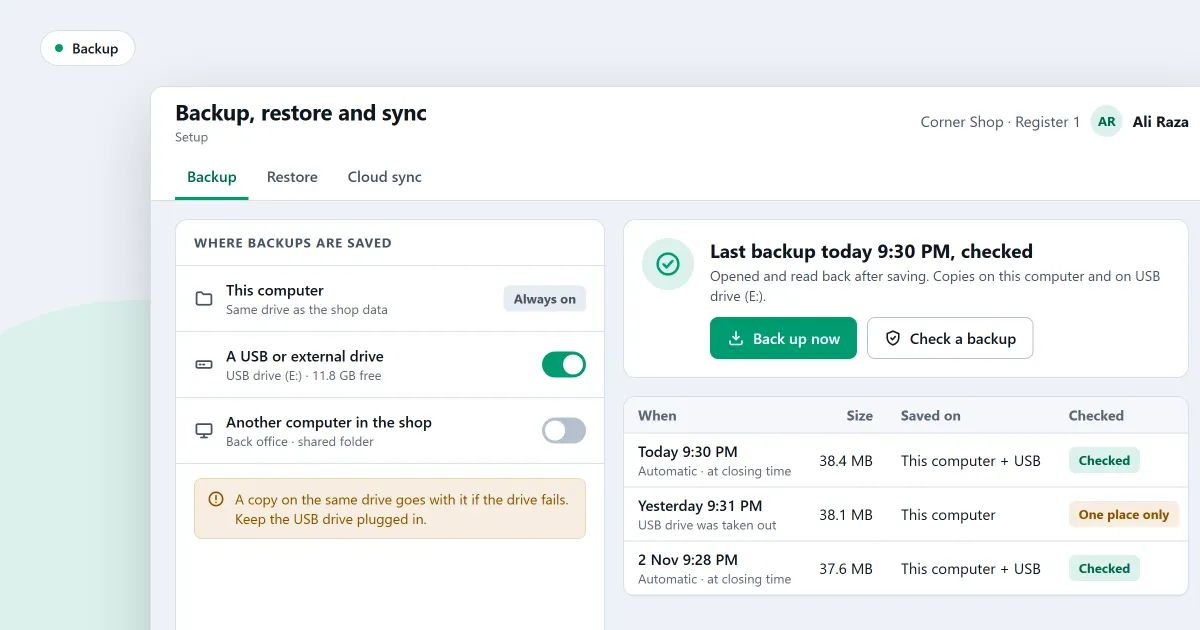
How do you back up shop data so that a broken computer does not end the business? A backup is only useful if it is kept in another place and it opens when you need it. This page covers the habit first. The last part shows what SellyPOS does for it, and in which edition.
Why is a copy on the same drive not a backup?
A copy on the same drive is not a backup, because the same failure can take both the records and the copy. A broken disk, a Windows reinstall or a virus can wipe the whole drive. Keep at least one copy on a separate drive, a USB stick or another computer.
Keep more than one copy, from more than one day. A bad copy made today should not replace the only good copy you have. Keep the older copies for a while, and label each one with its date.
How often should I back up my shop data?
Back up every day the shop trades, and also after a big change such as a stock count or an import. A daily copy limits what you can lose to the work since the last copy. Keep the recent copies, and do not overwrite the last good one with a copy you have not checked.
A simple daily habit:
- At the end of each trading day, make a backup, or check that the program made one.
- Confirm that the backup finished and was checked.
- Copy it to a second place you control.
- Once in a while, look at an older copy to check that it opens.
How do I know a backup worked?
A backup has worked when the program reports it as finished and checked, and you can open the copy without errors. Look at the backup history for failed attempts. Treat any backup that is reported as unverified as one to make again.
Does SellyPOS back up shop data?
Yes, in Basic and Professional. SellyPOS backs up the shop to a folder you choose, can do it every day, and keeps a history of each backup. Each backup is checked as soon as it is made. Lite has no backup, restore, import or export.
Where SellyPOS stands
- Back up now, or every day. Back up now, or let the shop back up every day to a folder you choose. The history lists each backup, including failed attempts. Backups are not password protected, so keep the folder private. Basic and Professional.
- One local place. Each backup goes to one local place, and cloud backup is not built. Basic and Professional.
- Checked as soon as it is made. Each backup is checked straight after it is made, and a backup that is not verified is reported as unverified. Making a backup does not stop you selling. Basic and Professional.
- A checklist row for the drive. The checklist has a row for keeping backups off the Windows drive. The step is done once the backup folder is not on that drive. Basic and Professional.
- A restore that shows what will be lost. Restoring a backup first shows a preview of exactly what will be lost, with counts and a date range. Only a person with permission can start it, and a typed confirmation is needed before it goes ahead. Basic and Professional.
- Lite has no backup. Lite has no backup, restore, import or export. It says so on screen: a failed hard disk on a Lite computer loses its records. Lite.
The backup pages sit in the speed and reliability module. If you are weighing Lite against a paid edition, read free POS software for PC and what the free version leaves out.
Next
Read how to back up your shop data to a folder and how to restore a backup. Compare the editions on the pricing page, then download SellyPOS.
Questions people ask
Does SellyPOS back up my data?
Basic and Professional include backup and restore. Lite does not, and says so: on Lite, a failed hard disk loses your records, so move up to Basic before your data matters to you.
