How to start a garment shop: sizes, colours and stock
A first-month checklist for a clothing shop: what to buy, how to name sizes and colours, labels and exchanges, and what SellyPOS does for garments.
Short answer To start a garment shop, choose the sizes and colours you will sell, set up each product's variants, give each size a short code, and plan for exchanges. SellyPOS holds a product's sizes and colours as variants, and it creates the garment options when you choose that business type.
If you want to know how to start a garments business, the first month decides how smoothly the rest will run. Early problems often come from sizes and colours typed in different ways, and from stock that cannot be found on the shelf. This checklist covers that first month. The last part says what SellyPOS does for a garment shop, and in which edition.
What should a new clothing shop buy first?
Start with the lines your customers ask for most, in a few sizes and colours each. Buy a small range first, then add to it when sales show what sells. Keep a note of what was bought, in which size and colour, so the next order is based on the count.
A small range is easier to count. Five sizes in three colours is fifteen lines to fill, and each line needs its own count. Ten lines that sell are more useful than forty that do not.
How do I name sizes and colours so the stock stays correct?
Use one name for each size and each colour, and use the same names on every product. Write sizes in the same order each time, such as small, medium and large, and keep one spelling for each colour. Names that differ by a space or a letter become two separate entries, so the counts split.
Here is one shirt style counted in a grid, with invented counts. Rows are sizes and columns are colours.
| Size | Blue | Black | Total |
|---|---|---|---|
| Small | 2 | 3 | 5 |
| Medium | 4 | 4 | 8 |
| Large | 1 | 2 | 3 |
| Total | 7 | 9 | 16 |
Each row adds across to the total on its right, and each column adds down to the total at the foot. If the foot does not match the count on the shelf, a line is missing or a name is spelled two ways.
What do I do when a customer wants to exchange a garment?
Write down the reason for each exchange, check the item and its size before you take it back, and work out the difference in price. In SellyPOS, a customer can return goods and take replacements in one sale, and the difference is paid, or refunded if the replacements cost less.
Use the same routine on every exchange, so that a cashier does not have to decide each time. A short written rule on the counter, saying how long a customer has to exchange, helps both the cashier and the customer.
A first-month checklist
- Write the size chart. List the sizes you will carry, in the order you want them shown.
- Write the colour list. Use one name for each colour, and keep that name on every product.
- Check the first stock that arrives against the order. Count each line before the stock goes on the shelf.
- Set the exchange rule. Decide how long a customer has to exchange goods, and keep the rule the same for every sale.
Where SellyPOS stands
Five garment features are in SellyPOS. Each one names its edition.
- Starting options for a garment shop. Choose the garment business type at onboarding, or correct the type later in Setup, and the options are created. Shops that already exist do not get these options unless the type is applied again. Basic and Professional.
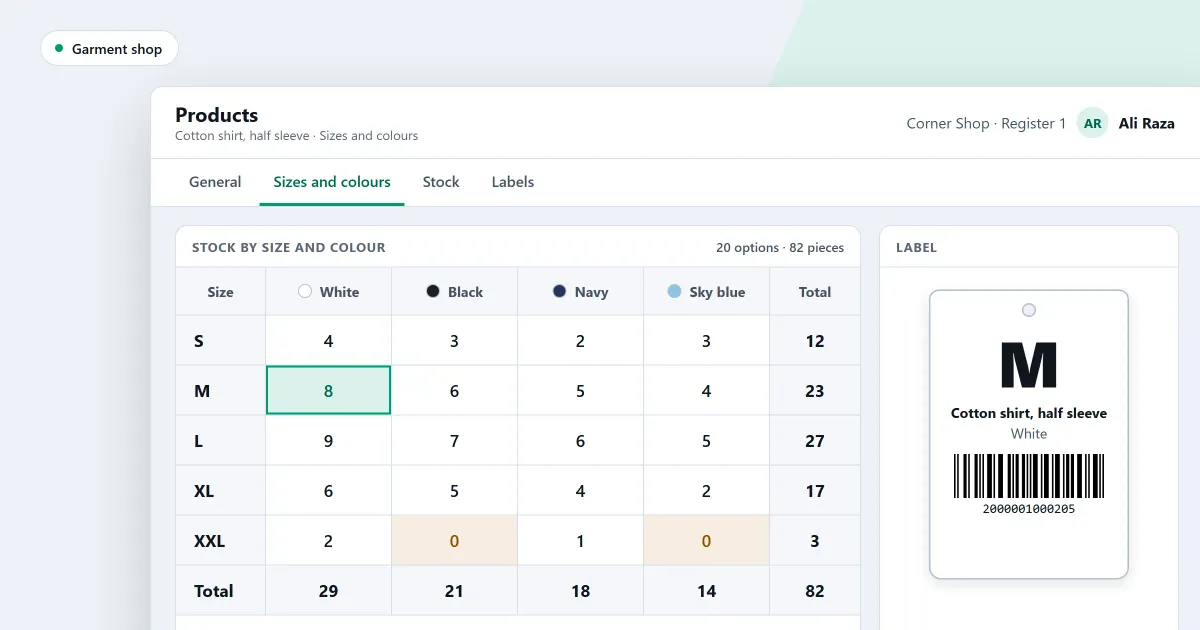
- Variants as a size and colour grid. A product’s variants can be shown as a grid of size against colour, with the stock of each variant. Basic and Professional.
- Size labels print only the size code. A size label prints only the short code of the size, such as M or XL. You choose which attribute a size design reads, so one shop can have a shirt design, a shoe design and a belt design. No designs for belts, shoes or shirts are shipped, so the shop makes its own. Professional only.
- Exchanges in one sale. A customer can return goods and take replacements in the same sale. Exchanges are not read by any report yet. Lite, Basic and Professional.
- Import from a spreadsheet. Import products from a spreadsheet workbook or a CSV file, starting from a downloadable template. An import only adds products; it does not update existing ones, and price lists are not part of it. Basic and Professional.
The clothing shop software page covers the same trade from the shop’s side, and the sizes and colours section of the products module sets out the variant settings. For a check of the software itself, read what to check in garment shop software.
Next
Read how to set up sizes and colours for a product and how to do an exchange in one sale. To bring a product list in from a file, read import products from Excel. Compare the editions on the pricing page, then download SellyPOS.
Questions people ask
Do I have to add every size of a shirt one at a time?
No. On purchase orders, goods received, quick purchase and stock adjustments, picking a product with variants adds a line for each active variant, with no quantity. Picking one variant adds only that one. Stock that sits on no variant can be given to the variants in the Distribute stock window, or adjusted out with an ordinary stock adjustment. A size label prints only the short code of the size, such as M or XL. You choose which attribute a size design reads, so a shirt design and a shoe design can differ. Choose garments or shoes as your business type at setup, or later in Setup, and the variant options are created for you. See POS software for clothing stores.
