Credit sales register: a format and how to keep it
A credit sales register format with a sample customer page, rules that keep it honest, how often to total it, and how SellyPOS keeps the same record.
Short answer A credit sales register is a book or sheet that records every sale made on credit, with the date, bill number, amount, payment and balance for each customer. Keep one line for each sale and each payment, in date order, and total the balances often. This page gives a format and says how SellyPOS keeps the same record.
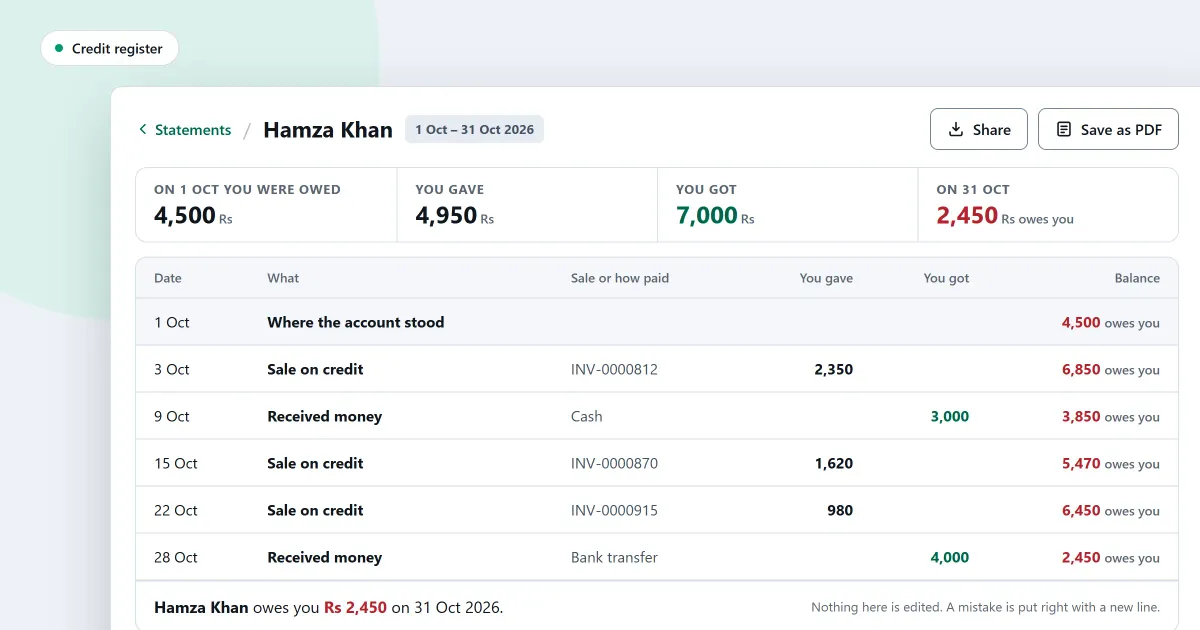
A credit sales register keeps every credit sale and every payment in one place, so the balance for each customer can be read at any time. A credit sale is goods the customer takes today and pays for later, and each one is easy to forget until the customer comes back to ask what they owe. Below is a format for one customer’s page, rules for keeping it, and a note on how SellyPOS keeps the same record.
What goes in a credit sales register?
A credit sales register holds the date, the bill number, a description, the amount of each credit sale, any payment made against it, and the balance still owed. Give each customer their own page or section, so one person’s balance is never mixed with another’s.
Sample page for one customer, Customer A, with invented figures:
| Date | Bill no. | Details | Owed | Paid | Balance |
|---|---|---|---|---|---|
| 1 Nov | 0101 | Sale: oil and rice | 1,000 | 1,000 | |
| 3 Nov | 0107 | Sale: tea and biscuits | 500 | 1,500 | |
| 5 Nov | Payment received, cash | 800 | 700 | ||
| 8 Nov | 0112 | Sale: soap | 300 | 1,000 | |
| 9 Nov | Payment received, cash | 1,000 | 0 |
How do you keep a credit sales register honest?
Write each credit sale and each payment on the day it happens, and never change an old line. If you find a mistake, add a correcting line with a note that says what it fixes. Check that the last balance equals the sales minus the payments before you close the page.
For Customer A, the sales of 1,000, 500 and 300 come to 1,800. The payments of 800 and 1,000 also come to 1,800. The balance is 0, which matches. If the two totals had differed, you would look for a missed line or a line written twice.
Keep the rules as well as the lines. Write the credit limit on the page, and check it before you agree to a new credit sale. A customer at the limit pays first, then buys on credit.
How often should you total the balances?
Total the balances at least once a week, and again on the day you take a large payment. Add the open balance of each customer’s page and compare the total with what the register says is owed. A difference means a line was missed or written twice, so find it before the next credit sale.
- Add each page’s last balance. Use only the balance on the last line of each customer’s page.
- Compare the total with the last weekly total. Note the change, and check it against the sales and payments of the week.
- Find any difference. Look for a missing line, a line written twice or a payment entered against the wrong customer.
- Write the total and the date at the foot of the register. That is the figure you start from next week.
Where SellyPOS stands
SellyPOS keeps the credit record for each customer, with the balance after every entry, in Basic and Professional. It is not in Lite.
- Credit page: who owes and how long. The Credit page lists who owes the shop, split into four ageing buckets. Overdue means a balance more than 30 days old. There is no promise-to-pay, automatic reminder or invoice-level view. The printed overdue list stops at 200 and says so. Basic and Professional.
- Customer ledger with a running balance. Each customer’s ledger lists every amount owed and paid in date order, with a running balance after each entry. Entries cannot be edited; a correction is added as a new entry. There is no invoice view and no date filter on screen. Basic and Professional.
- Customer statement and payments received. A customer statement lists one customer’s account line by line, with a running balance. Payments received lists payments newest first, with who took each payment. Receipt numbers and payment-method details are not built. Basic and Professional.
- Credit limit and credit period. Set a credit limit for each customer, and a credit period in days that sets when credit invoices fall due. Zero means no credit. Leaving the limit blank means unlimited, and only people with permission can set that. Basic and Professional.
- Opening balance as the first entry. Enter a customer’s opening balance with its date, either as an amount they owe or as an amount the shop owes. It is the first entry in their ledger and is never silently overwritten. Basic and Professional.
The steps for recording a payment are in how to receive payment from a credit customer, and the who-owes view is explained in track customer credit. The credit tools are on the customers and credit module and the customer credit software page.
Next
Read how to collect money from customers who owe you for the follow-up side. Set the limits in how to set a credit limit for a customer. Compare the editions on the pricing page, or download SellyPOS.
Questions people ask
Can I sell on credit?
Yes, in Basic and Professional. Each customer has a running balance: credit sales add to it, payments they bring in reduce it, and you can see who owes what at any time.
